If your Wi-Fi is quick in the kitchen and crawling in the back bedroom, the router is usually not broken. Why is my WiFi slow in one room? The signal reaching that space is weak, blocked by building materials, crowded by interference, or parked on a frequency band that cannot handle the walls between you and the router.
Sometimes the fault sits in a single device instead, and that is the option people miss. Plenty of households spend on a mesh system for a “dead zone” that turned out to be one laptop with a tired Wi-Fi adapter, so the diagnostic comes before the shopping. Everything below is ordered that way: work out where the fault is, then spend money only if a free fix does not solve it.
Table of Contents
- 1Why Is My WiFi Slow in One Room?
- 2How to Test Which Part of Your Network Is Causing the Problem
- 31. Run a speed test in the fast room
- 42. Run the same test in the slow room
- 53. Test a second device in the slow room
- 64. Run an Ethernet test in the slow room
- 75. Power-cycle the router and retest
- 8What Causes Wi-Fi to Get Slower in Certain Rooms?
- 9Why is my WiFi slow in one room but fine in the next?
- 10Wall and floor materials that block the signal
- 112.4 GHz vs 5 GHz: why your slow room may have picked the wrong band
- 12Interference from appliances and neighbouring networks
- 13Router settings and an ageing router
- 14One device rather than one room
- 157 Easy Fixes for Slow Wi-Fi in One Room
- 16How to make Wi-Fi stronger in one room without buying anything
- 17How to Choose Between a Wi-Fi Extender, Mesh System, or Access Point
- 18When Slow Wi-Fi Is Actually an Internet Provider Problem
- 19Frequently Asked Questions
- 20How do I make Wi-Fi stronger in one room?
- 21Why is my Wi-Fi slow on only one device?
- 22Does a Wi-Fi extender halve my internet speed?
- 23Which is better, a Wi-Fi extender or a mesh system?
- 24Why does Wi-Fi work in one room and not another?
- 25How do I clear my Wi-Fi cache and rejoin the network?
- 26Conclusion
Why Is My WiFi Slow in One Room?
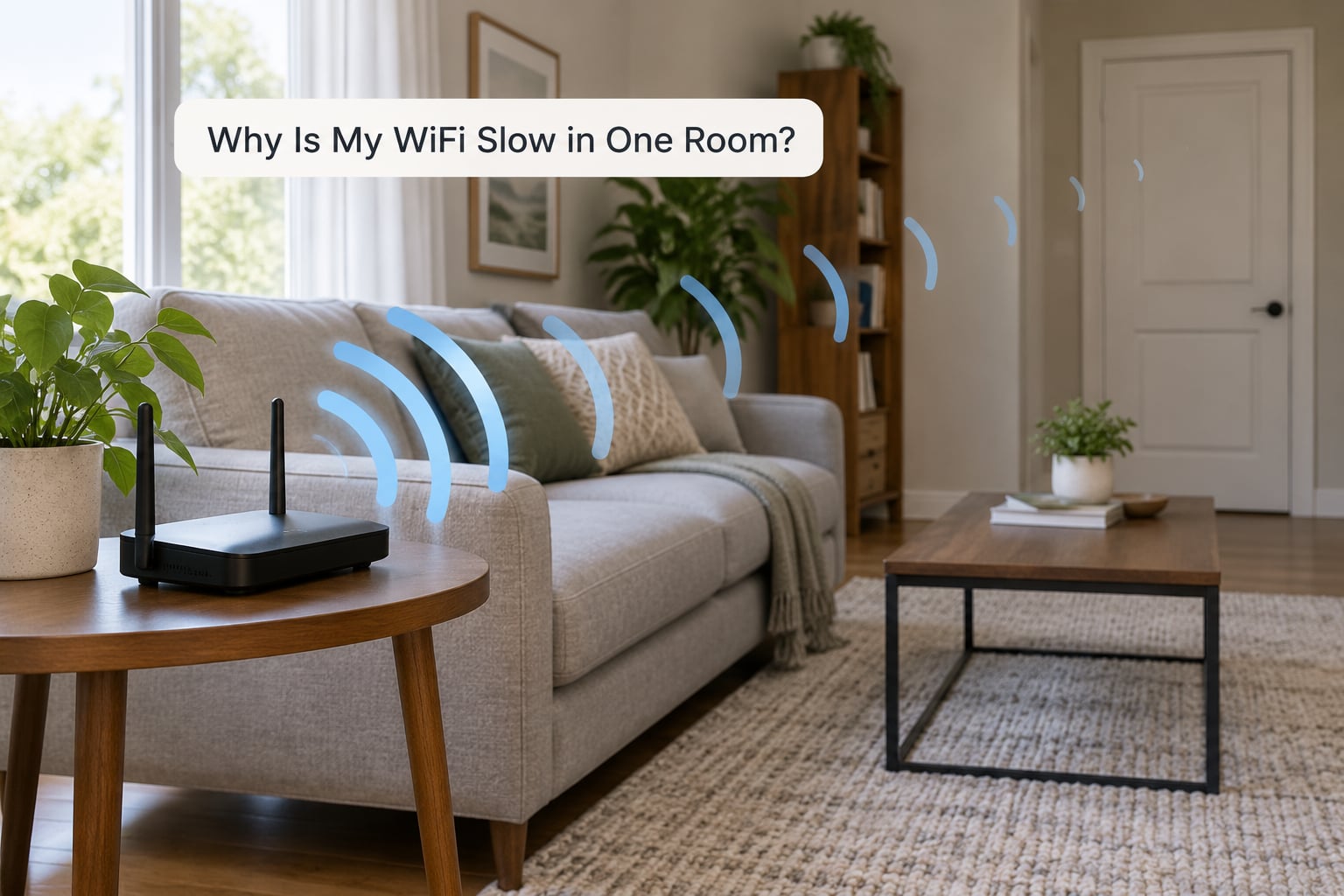
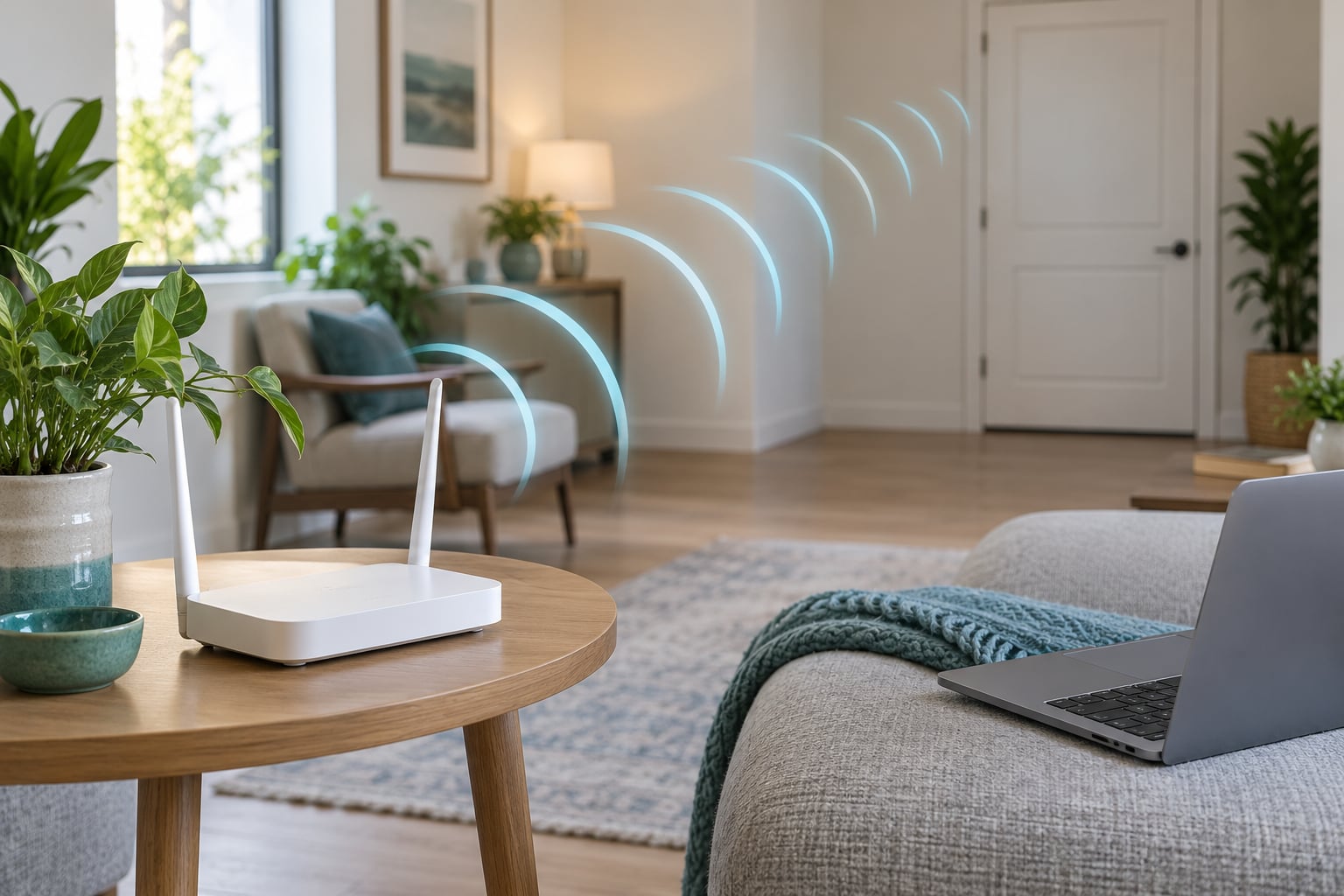
Your router broadcasts radio waves in every direction, and a device grabs the strongest clean one it can find. Walls, floors, mirrors and appliances absorb or reflect part of that energy on the way, so the room at the far end of the house receives a fraction of what the room next to the router receives. As the signal weakens, the connection drops to a slower link speed, retries more often, and everything you do online feels sluggish even though your internet plan is unchanged.
The main causes, in the order they show up in most homes:
- Distance and walls. Signal strength falls with every metre and every barrier between the router and the device.
- Building materials. Brick, concrete, foil-backed insulation and mirrored furniture block far more than drywall.
- Interference. Microwaves, baby monitors, cordless phones and Bluetooth gear share the same crowded airwaves.
- Neighbouring networks. Two dozen routers on a few channels turn 2.4 GHz into a queue.
- The wrong band. A device locked to 5 GHz two rooms away may be holding on to a signal that 2.4 GHz would reach easily.
- Router placement. A box in a basement, a hallway cupboard or a media cabinet rarely covers the whole floor.
- Crowded networks. Dozens of phones, cameras and TVs sharing one access point spread the airtime thin.
- One faulty device. An old adapter, a USB dongle pressed against a metal desk or a laptop that has simply given up.
Two of those deserve emphasis because they get confused with each other constantly. Band selection and interference are a “wrong radio” problem, which is free to fix. Distance and materials are a “too little signal” problem, which usually needs hardware or a different plan. A five-minute test tells you which one you have.
How to Test Which Part of Your Network Is Causing the Problem
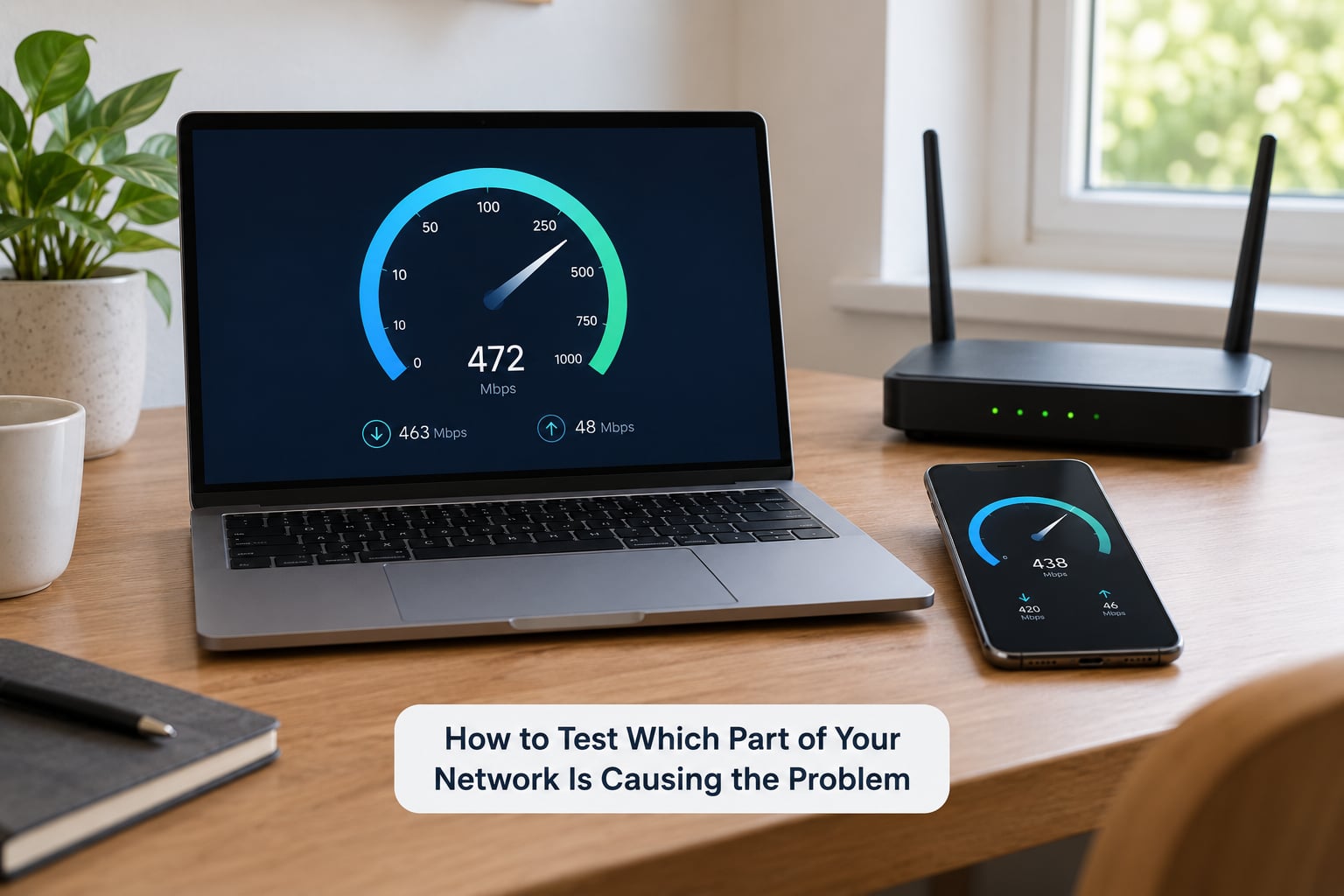
Run these five checks in order and stop at the first one that gives you an answer. You need a laptop or phone, an Ethernet cable if you have one, and about five minutes.
1. Run a speed test in the fast room
Use the same speed test tool you will use later, on the same device, close to the router. This is your baseline: if you get a number near your plan speed here, the line and the router are both fine.
2. Run the same test in the slow room
Move the same device to the slow room and repeat the test. A gap of more than about half between the two results is a coverage or congestion problem, not a broken line.
3. Test a second device in the slow room
This is the test that saves money. If a phone runs fast in the same spot where the laptop crawls, the room is fine and the laptop is the problem. That exact scenario shows up again and again in the Tom’s Hardware and r/wireless threads, where the answer was a USB adapter or a driver rather than new hardware.
4. Run an Ethernet test in the slow room
If you can run a cable to that room, plug it in and test again. Wired speed at or near your plan means the internet service is delivering what you pay for, and everything between the router and the room is the weak link.
5. Power-cycle the router and retest
Unplug it, wait 30 seconds, plug it back in, and give it two minutes to settle. A router that has been running for months accumulates heat, memory pressure and stale connection tables, and a surprising share of “slow room” reports clear after this step alone.
Reading the signal strength number on your device helps too. Around -50 dBm is excellent, -67 is good, -70 is usable, -75 is weak and -80 or worse is unreliable. Anything past -80 explains video buffering on its own.
What Causes Wi-Fi to Get Slower in Certain Rooms?
Why is my WiFi slow in one room but fine in the next?
Because radio waves do not travel in straight lines and rooms are not built symmetrically. The room next to the router is in the clear path, and the one behind a staircase, a chimney breast or a bathroom wall is not.
Wall and floor materials that block the signal
- Drywall and wood studs: minimal loss. Most homes are fine through these.
- Plaster with lath: older plaster often hides wire mesh or metal lath, which behaves like a screen.
- Brick: drops signal noticeably, especially with mortar joints between blocks.
- Concrete and reinforced concrete floors: the hardest common barrier, and the reason upstairs rooms suffer in apartment blocks.
- Metal doors, filing cabinets, mirrors, foil-backed insulation: reflective or conductive, so the signal bounces rather than passes.
- Fluorescent lighting and lift shafts: metal boxes that scatter what reaches them.
2.4 GHz vs 5 GHz: why your slow room may have picked the wrong band
Lower frequencies travel further and bend around obstacles better. 2.4 GHz gets through two walls and a floor far more reliably, but it is slower and crowded by neighbours and older Bluetooth gear. 5 GHz and 6 GHz deliver much higher throughput over short distances and struggle with thick walls. A device in the back bedroom that holds on to 5 GHz because it was paired there years ago can perform worse than one on 2.4 GHz.
Interference from appliances and neighbouring networks
A microwave running on the same band will flatten throughput while it operates. Baby monitors, cordless DECT phones, wireless security cameras and older Bluetooth speakers sit permanently in the 2.4 GHz range. Add a dozen neighbouring routers on the same three usable channels and the room ends up sharing airtime with everyone on your street.
Router settings and an ageing router
A 2.4 GHz radio set to a wide 40 MHz channel overlaps its neighbours, so narrowing it to 20 MHz often improves the effective speed in a crowded room. Old firmware, a WEP or WPA-only configuration, and a router several years past support all add their own problems. Renting means you may have no access to any of these settings, which narrows your options to band choice on the device and coverage hardware.
One device rather than one room
A desktop shoved against a wall with its Wi-Fi antennas facing the plaster is the classic case. So is a USB adapter plugged into the back of a PC, where the aerial sits next to a metal chassis. Outdated drivers, power-saving modes that switch the radio off mid-transfer, and a smart TV quietly downloading updates all look identical from the sofa.
7 Easy Fixes for Slow Wi-Fi in One Room
How to make Wi-Fi stronger in one room without buying anything
The first three fixes are free, take under ten minutes in total, and resolve a large share of cases. Do them in order.
- Move the router. Put it in a central, open spot, roughly waist height, off the floor and away from cupboards, mirrors, TVs and microwaves. A router crammed in a basement or a hallway cupboard cannot cover what it cannot reach through.
- Clear the interference nearby. Move the router away from the kitchen, relocate the microwave if you can, switch the baby monitor to 5 GHz or reposition it, and unplug any unused wireless gadgets sitting next to the router.
- Restart and update. Power-cycle the router, then check for a firmware update in its admin page and install it. Update the Wi-Fi drivers on the affected device too, especially if it is more than two years old.
- Change the band or channel. Put the slow-room device on 2.4 GHz for reach, or keep 5 GHz with an 80 MHz channel if you are close and want speed. On 2.4 GHz, drop the width to 20 MHz and pick channels 1, 6 or 11, the only three that never overlap.
- Fix the device position. Move the laptop or PC so the antennas are not flat against a wall, take a USB Wi-Fi adapter out of the metal slot and plug it into a USB extension cable with a small aerial on a desk. Turn off the adapter’s power-saving mode.
- Use Ethernet where you can. One cable to a back office or a streaming box removes the room from the wireless equation entirely. If the run is awkward, MoCA adapters use your coax cabling and powerline adapters use the mains wiring, both of which carry full line speed without repeating radio loss.
- Add a mesh node or an access point. Once the free moves have failed, put a mesh node in the slow room, or add an access point wired back to the router. That is the hardware step, so it comes last.
Two common mistakes make things worse. Placing the router in the strongest room rather than the centre of the home guarantees a dead zone somewhere else. Adding a single-radio repeater as a quick patch also costs you speed, which is the next section.
How to Choose Between a Wi-Fi Extender, Mesh System, or Access Point
Pick based on the size of the dead area and how it connects back to the router, not on the marketing speed number on the box. There is one number worth remembering before you shop: a repeater has one radio, so it receives a signal and rebroadcasts it using the same hardware, which cuts usable throughput by roughly half. Users on the Netgear community describe the loss as around 50% by design. A mesh node with wireless backhaul repeats the same penalty, and one r/wireless user with two Honor Router 3 units watched a link drop from about 450 Mbps to 120-150 Mbps after switching to a wireless link between the rooms.
- Wired backhaul, either Ethernet or MoCA: the fastest outcome, because nothing is retransmitted over radio. Best when you can run a cable or have coax in the room.
- Mesh with wired or powerline backhaul: the practical choice for a persistently slow room. Nodes in each problem room, a cable between at least one pair.
- Mesh with wireless backhaul: easier to install and free of cabling, but expect roughly half the link speed between nodes.
- Single-band range extender: cheap and quick, and the one to avoid. It halves speed and, if placed halfway, usually creates a second dead spot.
- Access point wired to the router: the tidy choice if you already have cabling or plan to, since it extends the network without repeating traffic.
- Powerline adapters: useful where coax and Ethernet are both impossible. They depend on the wiring in the house, so test before committing.
If you rent and cannot reach the router’s settings, a mesh system you administer yourself is often the only route. If you have coax, MoCA is the better answer.
When Slow Wi-Fi Is Actually an Internet Provider Problem
A provider problem looks different from a coverage problem, and the two get confused in both directions. If the slow room is the only slow room and a wired test in that same room hits your plan speed, the provider is doing its job. If everything is slow at once, including rooms right next to the router, and the wired test falls well short of the plan, the issue is upstream.
Before you call, restart the modem as well as the router, note the exact time and the room it happened in, and run a wired speed test twice at different times of day. Ask the provider for the line’s actual sync speed rather than a marketing figure, whether the line has a speed cap or a data threshold throttling it, and whether there is a local outage or maintenance in your area. Evening congestion is worth mentioning, because evening slowness across every room usually means a busy network segment rather than your own equipment.
If you are paying for gigabit and living in a building where the last part of the line is shared, an Ethernet run from the building distribution point may fix what no router change will.
Frequently Asked Questions
How do I make Wi-Fi stronger in one room?
Move the router to a central, open, waist-high spot away from mirrors and appliances, then test again. Next, put the slow-room device on 2.4 GHz, which reaches through walls better, or narrow the 2.4 GHz channel width to 20 MHz on channel 1, 6 or 11. If the room stays slow, add a mesh node or an access point wired back to the router rather than a single-radio repeater.
Why is my Wi-Fi slow on only one device?
Run the same device in a fast room and a different device in the slow room. If the phone is quick where the laptop crawls, the fault is the laptop. Check the Wi-Fi driver, turn off adapter power saving, and move the antennas or USB dongle away from walls and metal. Malware and a busy smart TV are the other common culprits.
Does a Wi-Fi extender halve my internet speed?
A single-radio extender does, because the same radio receives the signal and rebroadcasts it, which community measurements put at roughly 50% loss. A mesh node on wireless backhaul repeats that penalty, and one r/wireless user saw a wireless link between two rooms fall from about 450 Mbps to 120-150 Mbps. Wired backhaul, whether Ethernet, MoCA or powerline, avoids the loss entirely.
Which is better, a Wi-Fi extender or a mesh system?
Mesh, for almost every home with one persistently slow room. Extenders are cheap and quick but halve throughput and can create a second dead spot. Mesh handles several rooms, lets devices roam without dropping, and accepts Ethernet, coax or powerline for backhaul on at least one link. Extenders still make sense in a small flat that just needs a little more reach.
Why does Wi-Fi work in one room and not another?
Rooms are built from different materials and sit at different distances from the router. Drywall loses little signal, while brick, concrete, metal and mirrored surfaces absorb or reflect it, and a 5 GHz connection falls off much faster than 2.4 GHz. Neighbouring networks and household electronics add contention that gets worse the further you sit from your own signal.
How do I clear my Wi-Fi cache and rejoin the network?
Forget the network on the device, restart the device, then reconnect using the password. On Windows, open Settings, Network and internet, Wi-Fi, then Manage known networks and choose Forget. On iPhone or Android, tap the network name and choose Forget This Network. Restart the router as well, then rejoin.
Conclusion
Start with a comparison, not a purchase. Run the same speed test in the fast room, the same room with a second device, and an Ethernet cable in the slow room. If the wired number matches your plan and the second device is quick, you have a placement or coverage problem, so move the router toward the centre of the house and switch the affected device to 2.4 GHz. If the second device is slow too and the wired test is short of your plan, call the provider with those numbers in hand. As of 2026, that sequence still resolves more cases than any piece of new hardware.