You cannot factory reset a router and keep its settings, because a factory reset wipes the saved configuration by design. What you can do is back up that configuration first, write down the handful of details a backup file may not capture, and rebuild from your own notes afterwards.
The whole process takes about 20 minutes, and most of that is writing things down. Below is the backup-first method of how to reset a router without losing settings, plus the exact menu paths and button hold times for NETGEAR, TP-Link, ASUS, D-Link, Linksys, eero and Google Nest WiFi.
Table of Contents
- 1What You Need
- 2Step-by-Step: How to Reset a Router Without Losing Settings
- 3Check Whether You Actually Need a Factory Reset
- 4Find the Router’s IP Address and Sign In
- 5How to Reset a Router Without Losing Settings: Export the Configuration First
- 6Apply a Soft Reset or Restart First
- 7Use Factory Reset Only When Necessary
- 8Restore the Saved Settings and Verify the Connection
- 9Common Mistakes
- 10Frequently Asked Questions
- 11Can I reset my router without my ISP password?
- 12Does a factory reset delete my internet connection?
- 13How do I find the new Wi-Fi password after a reset?
- 14Can I restore a router backup to a different router model?
- 15Is unplugging my router the same as resetting it?
- 16Why did my smart home devices stop working after the reset?
What You Need
Before you touch anything, gather four things. Without them you will be guessing, and guessing is what turns a 20-minute job into a week without internet.
- Router admin credentials. Usually printed on a label on the bottom or back of the router. If you changed the admin password and wrote it down somewhere, now is the time to find that note.
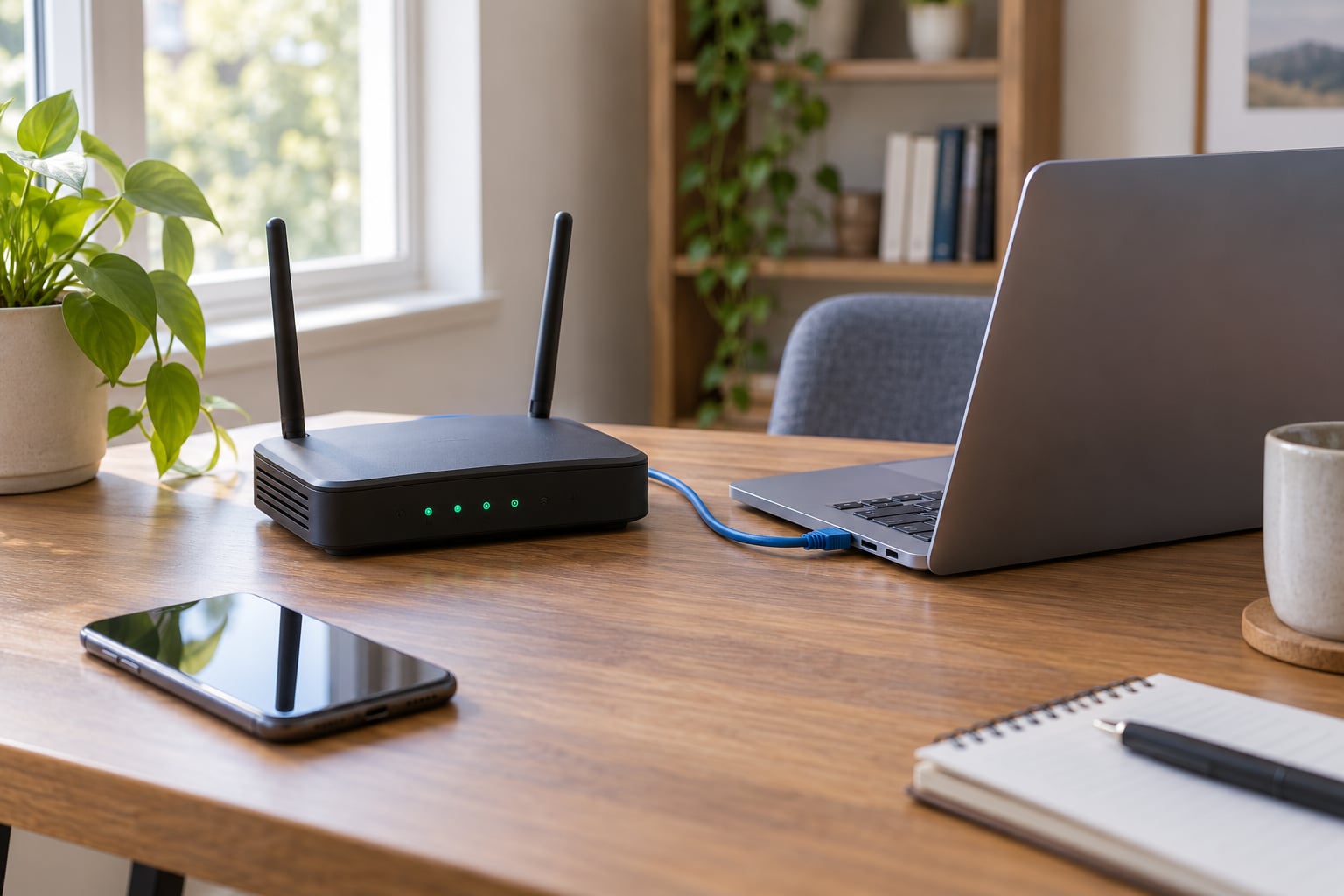
- A computer connected by Ethernet cable where possible. Wi-Fi drops out mid-reset, and a wired session survives the reboot so you can watch what happens.
- The router model and hardware version. Read it off the label, usually something like V2.00 or HW Rev 1.1. A backup file only restores to the same model and hardware version.
- Your ISP’s connection details if your internet uses anything other than plain DHCP: PPPoE username and password, VLAN ID, or an IPTV profile.
Now the warning. A factory reset erases your Wi-Fi name and password, guest networks, parental controls and schedules, port forwarding rules, VPN client settings, custom DNS, DHCP reservations, QoS rules, and any list of connected devices the router remembers.
It also deletes the mesh pairings between your main unit and satellites, and any device you paired while they were all on the same network. If you have cameras, hubs or smart plugs, plan to re-create the exact same Wi-Fi name and password so they reconnect on their own.
Step-by-Step: How to Reset a Router Without Losing Settings
Menu names and folder layouts shift between models and firmware versions, so treat the labels below as the usual names rather than fixed addresses. If your router’s menu looks different, look for the equivalent word rather than the exact one.
Check Whether You Actually Need a Factory Reset
Most “I need to reset my router” situations are solved by a plain restart, which takes 90 seconds and loses nothing.
| Action | What it does | Data loss | Use it when |
|---|---|---|---|
| Reboot or power cycle | Restarts the router with its stored configuration intact | None | Speeds dropped, connections freeze, you changed something small |
| Soft reset | Reloads the last saved configuration, or applies pending changes | Changes since the last save | A setting is half-applied or the router will not commit a change |
| Factory reset | Returns the router to out-of-the-box defaults and restarts first-run setup | Every customized setting | Corrupted settings, IP conflicts, a failed firmware update, or a router you bought used |
Start with a reboot: use the Reboot or Restart option in the admin interface if you can reach it, otherwise unplug the power, wait 30 seconds, and plug it back in. If the router behaves normally afterward, you have your answer and nothing was erased.
Find the Router’s IP Address and Sign In
Open a browser and type the router’s local address. Most brands use 192.168.1.1, and 192.168.0.1 is the other common default.
NETGEAR routers also respond to routerlogin.net, and some ASUS, Linksys and D-Link models accept their own domain names. If none of those load, open the default gateway shown in your computer’s network settings: on Windows, run ipconfig and read the Default Gateway line; on macOS or iOS, look under Wi-Fi details for the router value.
Sign in with the administrator username and password from the label. If you never changed it, it is still the factory one. If the page rejects you and you cannot find the label, ISP-supplied gateways usually have a support line that will talk you through it.
How to Reset a Router Without Losing Settings: Export the Configuration First
Most routers can download their entire configuration as a small file. Look under Administration, System Tools, Maintenance, or Backup and Restore, then choose Backup or Download configuration. The file usually lands in your Downloads folder with a name based on the model.
Two cautions. A configuration file almost always contains your Wi-Fi password and other credentials in plain text, so keep it somewhere private. And per the manufacturer compatibility rules, it will only load cleanly onto the same model with the same hardware version.
Now write down the things a file may not restore, especially if your internet comes from an ISP that provisioned the router. Note your Wi-Fi name and password, the guest network name and password, parental control rules and schedules, port forwarding entries and the internal device each one points at, any VPN client profile, custom DNS servers, the DHCP address range, and firmware and hardware version numbers.
If you have port forwarding rules, write down which internal device each one targets. That is the detail people forget and the one they miss when they restore.
Apply a Soft Reset or Restart First
Before anything destructive, use the gentler options. In the admin interface, look for Apply, Save, Restore, Reboot or Restart. Some models also offer a scheduled or delayed restart that runs overnight.
Verify the result before moving on. Reconnect to your usual Wi-Fi name using the same password, open a few pages, and check that a smart TV or phone picks up an address without a fight. If all of that works, you did not need a factory reset at all.
Use Factory Reset Only When Necessary
If a restart did not fix it, do the reset. You have two routes: through the web interface or through the hardware button.
Via the web interface, open Administration or System Tools, then choose Restore Factory Defaults. TP-Link VDSL and ADSL routers use slightly different labels for the same menu, so if one path is missing, check the other. Confirm, and wait while the router reboots back to setup mode.
Via the hardware button, keep the router powered on. Find the small recessed hole labelled Reset on the back or underside, press it with a paperclip or the tip of a pen, and hold. Most manufacturers specify 10 seconds, with some ranges quoted as 6 to 10 seconds or up to 15. Release when the status lights change, then wait two to three minutes for the boot cycle to finish.
| Brand | Admin page | Backup and reset menu | Hold time |
|---|---|---|---|
| NETGEAR | routerlogin.net or 192.168.1.1 | Advanced, then Administration, then Backup and Restore | About 10 seconds |
| TP-Link (Archer) | tplinkrouter.net or 192.168.0.1 | Advanced, then System Tools, then Backup and Restore | 5 to 10 seconds |
| ASUS (Asus routers) | asusrouter.com or 192.168.1.1 | Administration, then System, then Backup and Restore | About 5 seconds |
| D-Link | dlinkrouter.com or 192.168.0.1 | Management, then Backup, then Restore Defaults | About 10 seconds |
| Linksys | 192.168.1.1 | Administration, then Factory Defaults | About 10 seconds |
| eero | No browser admin page | eero app, then Settings, then Reset eero network | Not applicable |
| Google Nest WiFi | No browser admin page | Google Home app, then the device, then Reset | Not applicable |
A few safety points. Unplug only the power cable, never the coaxial or fibre line, and keep the router powered for the whole hold. Press the button labelled Reset, not the one labelled Wi-Fi, WPS or WLAN, which pair devices instead. And do not press anything else while you are holding it.
Mesh systems need extra care. Resetting the main unit usually resets the satellites and every node pairing with it. If only one satellite is misbehaving, reset that node alone from its own app screen first.
Restore the Saved Settings and Verify the Connection
After the router finishes booting, join the new default Wi-Fi network. The default name and password are printed on the label again at this stage, and the network usually has a different name from your old one, which is how you know the reset worked.
Complete the first-run setup wizard. Re-enter the exact Wi-Fi name and password you had before, character by character, if you want your cameras, hubs and printers to reconnect without manual work. Then go back into the admin page and import your configuration file if the interface offers Restore or Upload.
If the import is rejected, that usually means a model or hardware version mismatch, not a corrupt file. Fall back to re-entering settings from your written record, one group at a time.
Verify in layers so a failure tells you something useful. Start with the modem: check that its WAN light is steady and that a direct connection works. Then the router itself: confirm it holds an internet address and can reach the outside world. Then Wi-Fi: connect a phone, run a speed test, and walk to the far room where coverage was previously weakest. Then the extras: check that port forwarding works from outside your network, that the guest network is separate, and that your smart devices came back online.
If a smart device stays offline even with the same network name and password, delete it from your phone’s Wi-Fi list, forget the network, and rejoin. Some cameras also need to be power cycled after the router comes back.
Common Mistakes
Resetting before backing up. This is the expensive one, because it is the only mistake you cannot undo. Export the file and write your record first, every time.
Holding the wrong button. The Wi-Fi or WPS button on the side pairs a new device and does nothing during a reset. Find the small recessed hole instead.
Using the wrong admin address. Guessing random 192.168.x.x addresses wastes time. Read the default gateway from your computer, or check the label for the address printed by the manufacturer.
Forgetting the new default Wi-Fi password. After a reset, the password on your devices is wrong. Use the label password to rejoin, then immediately set your own.
Expecting the internet to come back on its own. Factory defaults do not restore your ISP’s provisioning. If your service uses PPPoE, a VLAN ID or an IPTV profile, contact the provider before resetting, or be ready for that call afterwards.
Importing a backup into a different model. Restore files are tied to a specific model and hardware version. Importing across models fails quietly or leaves broken settings, so re-enter settings manually instead.
Leaving the backup file lying around. Configuration files usually contain your Wi-Fi password in readable form. Store the file in a locked or private folder and delete copies once the restore is done.
One more thing worth knowing, because it saves a reset entirely. If devices cannot get a fresh network setting after you changed something, open the DHCP settings and drop the Address Lease Time to its one-minute minimum, then restore it afterwards. Clients re-read their network settings without any disruption to your configuration.
Frequently Asked Questions
Can I reset my router without my ISP password?
Usually yes, because most home connections use plain DHCP and need no password. The exceptions matter: PPPoE accounts, VLAN-tagged service, static IP blocks and IPTV or voice profiles are set up by the provider, not by you, and a reset erases them. Check whether your router is ISP-supplied and whether your service uses anything beyond DHCP before you press the button. If it does, ask the provider for the settings first or plan on a support call afterwards.
Does a factory reset delete my internet connection?
No. A reset erases the router’s stored configuration, not your internet service. The router simply forgets how to reach the internet, so the first-run wizard has to be told again. On a DHCP connection that takes a minute or two. On PPPoE or a VLAN-tagged connection you need details only your provider holds, which is why the backup-first method matters most there.
How do I find the new Wi-Fi password after a reset?
It is printed on the label underneath or on the back of the router, usually beside the default network name. Some models use a short password like admin or password, and a few derive it from the last characters of the serial number. If the label has peeled off, search your account or setup email from the manufacturer, or ask your ISP if they supplied the router. Set your own password as soon as you are back in.
Can I restore a router backup to a different router model?
No, not reliably. Configuration files are tied to the exact model and hardware version, which is why manufacturers warn against importing across models. The file may be rejected outright, or accepted with settings that do not fit the new hardware. If you are moving to a different router, skip the file and re-enter your settings manually from the written record you made before the reset.
Is unplugging my router the same as resetting it?
No. Unplugging is a power cycle: the router restarts and keeps every setting it has saved. A factory reset is different, because it erases the configuration and puts the router back into first-run setup. If your problem is slow speeds or dropped connections, try the power cycle first. It costs 30 seconds and you lose nothing if it works.
Why did my smart home devices stop working after the reset?
Because the network name or password changed, so your cameras, hubs and plugs cannot find the network they were joined to. The fix is simple: in the setup wizard, enter your previous Wi-Fi name and password exactly as they were, and the devices should reconnect on their own. If any stay offline, forget the network on your phone and rejoin it, then power cycle the device itself.
Start with a restart, not a reset, because it costs nothing and solves most cases. When you do reset, export the configuration, write your Wi-Fi credentials and any ISP details on paper, and put your old network name and password back in exactly as they were. That is the whole of how to reset a router without losing settings: back up first, write it down, restore it by hand.