You can tell if someone is using your WiFi by opening your router’s admin panel and reading the connected-devices list, then matching every entry against the devices you actually own. Anything left over is either a forgotten gadget of yours or a guest who has your password. The whole check takes about five minutes.
Be honest about what this proves. The device list tells you a machine is connected, and the vendor prefix on its MAC address often tells you what kind of machine it is. It does not tell you what that machine is browsing. Anyone promising you browsing history from a home router is overselling it. What you do get is a fast, definitive answer to the question that actually matters: who has the key.
Table of Contents
- 1What You Need
- 2Step-by-Step: How to Tell If Someone Is Using Your WiFi
- 31. Access Your Router’s Connected-Device List
- 42. Compare Connected Devices With Your Own
- 53. Look for Signs Someone Is Using Your WiFi Without Permission
- 64. Look at Router Traffic or Activity
- 75. Review Your Network Login and Sharing Settings
- 86. Remove Unknown Devices and Block Unauthorized Access
- 97. Monitor the Network After Changing Access
- 10Common Mistakes
- 11Frequently Asked Questions
- 12How can I see all devices connected to my WiFi?
- 13Can someone use your WiFi without you knowing?
- 14Why do unknown devices keep connecting to my WiFi?
- 15How do I block a device on my WiFi without changing my password?
- 16Can a neighbour mess with my WiFi?
- 17Should I enable the guest network on my router?
- 18Conclusion
What You Need
You need four things, and you probably already have three of them.
- Your router. Usually a box from your internet provider or the one you bought yourself, somewhere near a TV or in a hall cupboard.
- The administrator credentials. Flip the router over or look underneath it. Most units have a sticker with a URL, a username like admin, and a password. If someone changed the admin password, a factory reset is the only way back in.
- A phone or laptop connected to that same WiFi, with a browser open.
- A list of your own devices. Scroll back through this article while you check, because the fastest way to spot a stranger is to already know the regulars.
Step-by-Step: How to Tell If Someone Is Using Your WiFi
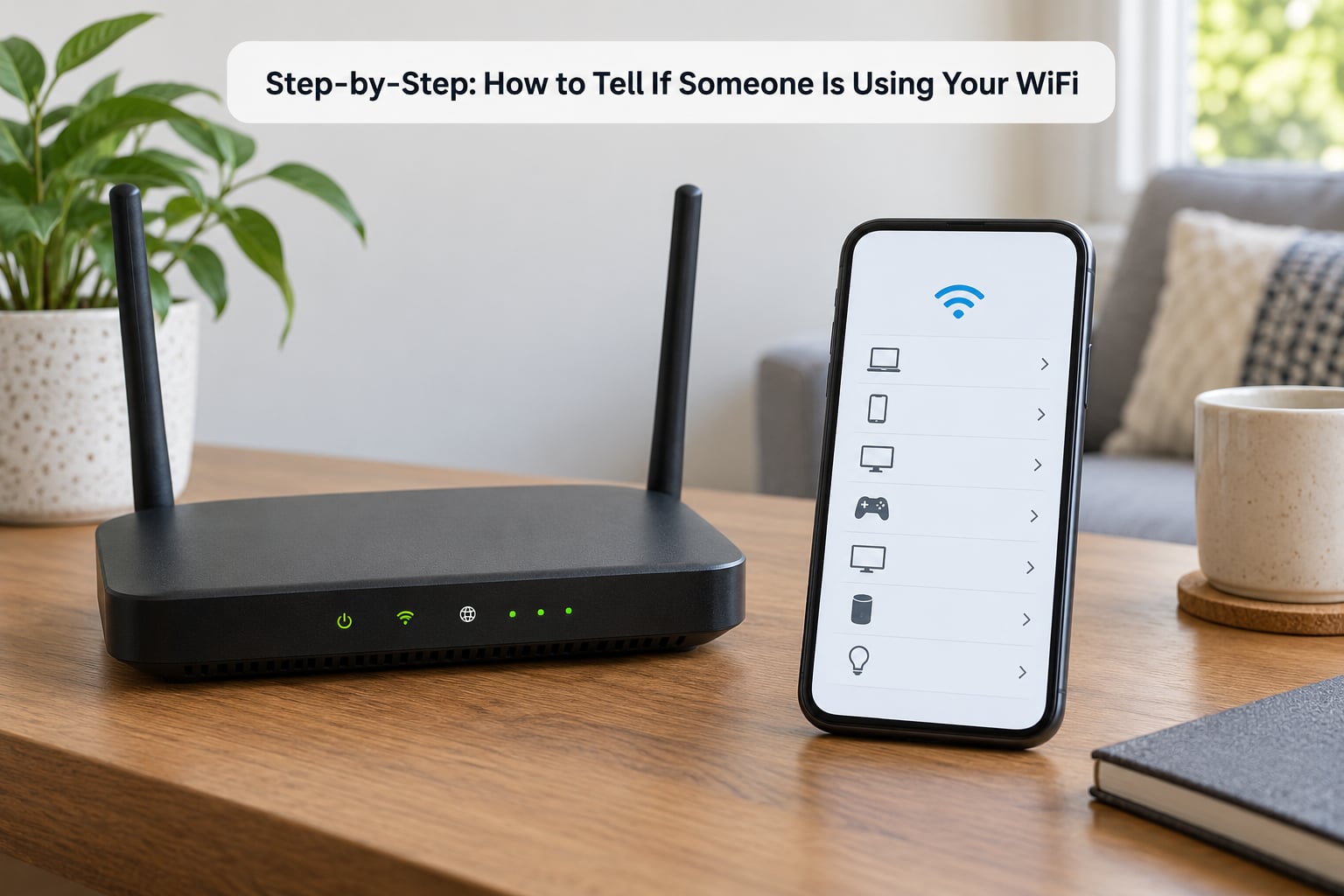
1. Access Your Router’s Connected-Device List
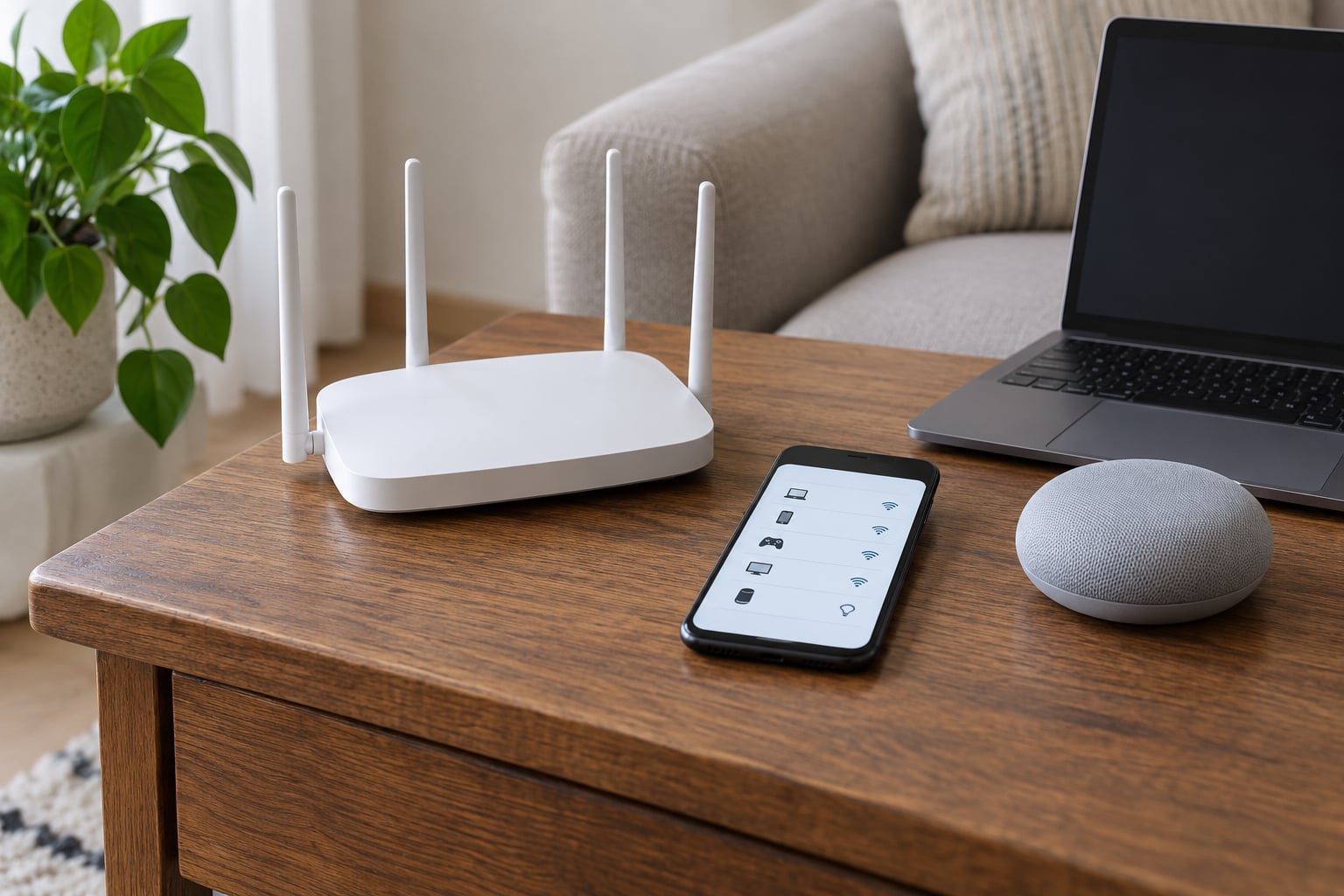
Here is the short version that answers the search outright. Type 192.168.1.1 into your browser address bar (many routers use 192.168.0.1 instead), log in with the credentials on the sticker, and open the page labelled Connected Devices, Attached Devices, DHCP Clients or Device List.
- Open a browser on a device already joined to your WiFi.
- Type 192.168.1.1 or 192.168.0.1 into the address bar.
- Log in with the admin username and password from the sticker.
- Find Connected Devices, Attached Devices, DHCP Clients or Device List, then read the device names and MAC addresses.
If the address does not work, open the sticker on the router. It lists the correct management URL for that model, and that URL is more reliable than any guess. The page itself is usually bare and a little ugly, which tells you immediately you are in the right place.
Menu names differ by brand, and that mismatch is the single biggest reason people give up:
| Router or system | Where to sign in | What the device list is called |
|---|---|---|
| Generic router | 192.168.1.1 or 192.168.0.1 in a browser | Connected Devices, Attached Devices, DHCP Clients, Device List |
| TP-Link (Tether) | Tether app or 192.168.0.1 | Connected Devices, under Device |
| Netgear (Netgear Armor or router interface) | 192.168.1.1, or the Netgear app | Attached Devices |
| ASUS (ASUS Router app or ASUSWRT) | 192.168.1.1 or the ASUS Router app | Network Map, then Client List |
| Xfinity | myxfinity.com or 10.0.0.1 | Connected Devices on the home network page |
| Eero | Eero app only, no browser panel | Connected, under Activity |
| Google Nest WiFi | Google Home app only | Devices, under the network |
On mesh systems like Eero, Orbi and Google Nest there is no browser panel at all. The device list lives inside the phone app, which is actually easier once you have it installed.
2. Compare Connected Devices With Your Own
Go through the list line by line and match each entry to something you own. Most lists show a device name, an IP address like 192.168.1.14, and a MAC address such as a4:83:e7:2b:09:11.
Count what you should see: every phone, laptop, smart TV, printer, video doorbell, baby monitor, thermostat, smart bulb, game console and streaming stick in the house. Then count what is actually listed. If the second number is higher and you cannot account for the difference, you have your answer. A list showing DESKTOP-ABC123, iPhone, Amazon-Echo and Samsung-Smart-Fridge reads much faster once you know the manufacturer names hide inside those labels.
3. Look for Signs Someone Is Using Your WiFi Without Permission
Not every unfamiliar name is an intruder, so look for patterns before you panic.
- Names you cannot place. A long random string of letters and numbers, a laptop-style name with no matching computer, or a bare IP address.
- Vendor prefixes that make no sense here. The first three bytes of the MAC address identify the hardware maker. If one starts with a prefix you do not recognise, search the full MAC address and you will usually get the manufacturer.
- Entries that come and go. Watch a suspicious device across a day. One that appears at 2am and vanishes is not a smart bulb.
- Duplicates that are really one device. A phone that reconnects can appear as a second entry with a new address.
If a name looks wrong but you are not certain, run the isolation test that people on r/HomeNetworking reach for most often. Turn off one of your own devices, wait thirty seconds, and re-check the list. If the suspect entry disappears, that entry was your device. Work through your devices one at a time until something remains on screen after everything of yours is off. It takes ten minutes and it settles almost every false alarm.
One honest caveat: an iPhone using Private Wi-Fi Address and an Android phone set to a randomized MAC address type will show up as a fresh unknown device whenever they join a network. r/wifi threads end the same way every time. On an iPhone the fix is Settings, WiFi, then the info button next to your network to switch Private Wi-Fi Address off. On Android, look for Use randomized MAC or MAC address type and set it to Device MAC. If you are hunting a real intruder, this matters more than any other trick, because it stops you blocking your own phone.
4. Look at Router Traffic or Activity
The device list tells you who is present, not who is streaming. For that, look for a traffic or bandwidth view. Some routers graph live usage per device under Traffic, Bandwidth or Internet Status. The vendor apps from Netgear, ASUS and Eero are better at this than the browser panel.
Compare what you see with what should be happening. Streaming video, video calls, cloud backups and system updates all produce heavy traffic and are easy to recognise. So is a large download. What has no innocent explanation is steady heavy use in the middle of the night when every screen in the house is off.
Also run a speed test when you are suspicious and again when everything is off. A drop points at bandwidth being consumed, but it proves nothing on its own, because speed varies with time of day and your provider throttling. Treat it as a hint, not a verdict. The classic version of this test is simpler: switch off all your own devices, watch the router activity light, and see whether it keeps blinking.
5. Review Your Network Login and Sharing Settings
Sometimes there is no intruder at all, just loose access you handed out.
- Who has the WiFi password. Most unwanted access comes from a guest, an old roommate or a neighbour who was given the password once and never gave it back. Threads on r/techsupport describe exactly this pattern again and again.
- The guest network. Check whether it is on, and whether it uses the same password as your main network. Many routers ship with both identical.
- The admin password. If it is still admin or password, anyone who guesses the address can change your DNS, add a VPN or open ports.
- WPS. The push-button and PIN methods have been broken for years. Turn WPS off.
- Router sharing features. Vendor cloud accounts, media servers and remote management ports can all leave the network reachable from outside.
6. Remove Unknown Devices and Block Unauthorized Access
Start with the least disruptive fix. Most modern routers have access control that blocks one device without touching anything else, and TP-Link users on r/HomeNetworking are pointed straight at Access Control with blacklist or whitelist mode for exactly this reason. Add the suspect MAC address to the block list, or switch to whitelist mode so only approved devices are allowed in. Nothing of yours needs reconnecting.
Then change the WiFi password itself, which locks out anyone holding the old one. Expect to reconnect every device by hand, and that is the part that puts people off: smart TVs, cameras, printers and bulbs all need the new password typed in again.
- Block or remove the unknown device in access control, if your router supports it.
- Change the WiFi password to a long passphrase you have not used before.
- Change the router admin password away from the default.
- Set encryption to WPA2 or WPA3 and delete any WEP option.
- Turn WPS off.
- Install any pending firmware update, then power-cycle the router.
- Reconnect your own devices and re-check the list.
The reboot matters more than people expect. People on r/techsupport report that a power cycle drops every active connection at once, which is the fastest way to be certain the old session is gone.
7. Monitor the Network After Changing Access
One clean list is not proof, so check again the next day and the day after. Write down the MAC address of anything you blocked, so if it comes back you can match it in seconds. If an unknown entry keeps reappearing under a new name or a new address, note the times it appears and take that log to your internet provider or the router manufacturer.
If your provider supplied the router, changing the admin password matters more than changing the WiFi password, because the provider can reset it remotely. If you have set a new admin password, ask them to stop doing that.
Common Mistakes
Judging by speed alone. A slow evening proves nothing. The device list is the evidence; speed is the rumour.
Hiding the network name. Turning off the SSID broadcast makes you slightly harder to find and does nothing about someone who already has the password.
Ignoring the smart-home pile. A household with a doorbell, a couple of bulbs and a thermostat can easily show fifteen entries you have never consciously registered. Write your list down before you start.
Blocking without the isolation test. The fear of cutting off your own phone is what stops people fixing this. Switch Private Wi-Fi Address off first, then match confidently.
Changing the password and walking away. Every smart device you forgot about drops off and quietly stops working until someone types the new password into it.
Frequently Asked Questions
How can I see all devices connected to my WiFi?
Type 192.168.1.1 or 192.168.0.1 into a browser on a device already joined to the network, sign in with the credentials printed on the router sticker, and open the page labelled Connected Devices, Attached Devices or DHCP Clients. Mesh systems such as Eero and Google Nest show the same list inside their phone apps, since they have no browser panel at all.
Can someone use your WiFi without you knowing?
Yes, and usually you never notice. Anyone holding your password joins quietly and appears as one more entry on a device list nobody reads. It usually happens when a guest, an old roommate or a neighbour is given the password verbally and keeps using it long after they should have stopped.
Why do unknown devices keep connecting to my WiFi?
Usually they are yours. An iPhone using Private Wi-Fi Address, or an Android phone set to a randomized MAC, appears as a fresh unknown device every time it joins. Old phones left in a drawer, leftover leases from a previous router and ISP-supplied equipment are the other common explanations. Turn your devices off one at a time to confirm.
How do I block a device on my WiFi without changing my password?
Use access control in your router settings. Most routers offer blacklist and whitelist modes, and TP-Link calls it Access Control. Add the device’s MAC address to the block list and it is denied while everything else keeps working. Some routers also let you pause internet access for a device, which stops traffic without disconnecting it.
Can a neighbour mess with my WiFi?
They cannot get in without your password, and a current WPA2 or WPA3 setup is not something they can quietly bypass from the street. The realistic routes are an old password that was shared once, WPS left switched on, or unchanged default admin credentials. Closing those three holes removes the problem.
Should I enable the guest network on my router?
Yes, for anyone who only needs internet. Guest networks put visitors on a separate network that cannot reach your shared printer, NAS, cameras or smart-home devices, and you can change that password without touching the main one. Give guests the guest password and keep your main password private.
Conclusion
Start with the connected-devices list. Open 192.168.1.1, sign in with the sticker credentials, read the entries and compare them one by one with the devices in your house, because that single check answers the question faster than any speed test or guessing game. Anything you cannot place, isolate with the switch-off-one-at-a-time method, and switch off Private Wi-Fi Address on your own phone first so you do not block yourself.
If something genuinely unfamiliar survives that, block its MAC address in access control, then change your WiFi password, your admin password and your encryption settings, turn WPS off and reboot. Reconnect your own gear, check the list again the next day, and you will know within ten minutes whether anyone else is on your network.