To free up storage on your phone, open its storage settings, sort everything by size, and work down the list: clear app caches, bulk-delete media you have already backed up, remove offline downloads from chat and streaming apps, and uninstall apps you never open. On a typical phone, photos, videos and chat media eat the bulk of the space, not apps.
This takes about 20 minutes for a first pass, and nobody needs to be technical. The order matters, though, and the whole thing is much easier if you sort by size instead of deleting things one at a time. I have watched people spend an hour deleting apps and barely shift a gigabyte, then free 30GB in five minutes once they looked at the video folder.
Two things first. The menu names below follow current iOS and Android versions as of 2026, and menus genuinely do shift between versions and between phone makers, so if a label is different on your device, look for the closest match. And whatever you do, confirm your photos are backed up before you delete a single one. Everything else here is reversible; that is the part that is not.
Table of Contents
- 1What You Need
- 2Step-by-Step
- 31. Check What Is Using Storage
- 42. Delete or Move Large Unused Files
- 53. Clean Up Photos and Videos
- 64. Clear App Data and Cache
- 75. Review Unused Apps
- 86. Check Messaging Apps and Offline Downloads
- 97. Empty the Trash and Manage Temporary Files
- 108. Prevent Storage from Filling Up Again
- 11Common Mistakes
- 12Frequently Asked Questions
- 13What should I delete when my phone is full?
- 14Does deleting photos free up storage on my phone?
- 15Does deleting text messages free up storage space?
- 16Will clearing cache delete my passwords or log me out?
- 17Why is my storage so full even after deleting photos?
- 18Can I recover photos after deleting them to free space?
- 19Conclusion
What You Need
Not much. Before you start, it helps to have these three things sorted:
- About 20 minutes and a charger. The last few steps involve transfers, and phones get hot when they are copying a lot of data.
- A working backup. On iPhone, iCloud Photos must be switched on in Settings > Photos, or your photos need to be on a computer. On Android, Google Photos backup should show as up to date.
- Your two storage screens open. On iPhone that is Settings > General > iPhone Storage. On Android it is Settings > Storage, or Settings > Battery and device care > Storage on Pixel and Samsung phones.
If you skip the backup, the steps below still work, they are just riskier. If you skip the two-minute sort by size, you will probably delete the wrong things first.
Step-by-Step
1. Check What Is Using Storage
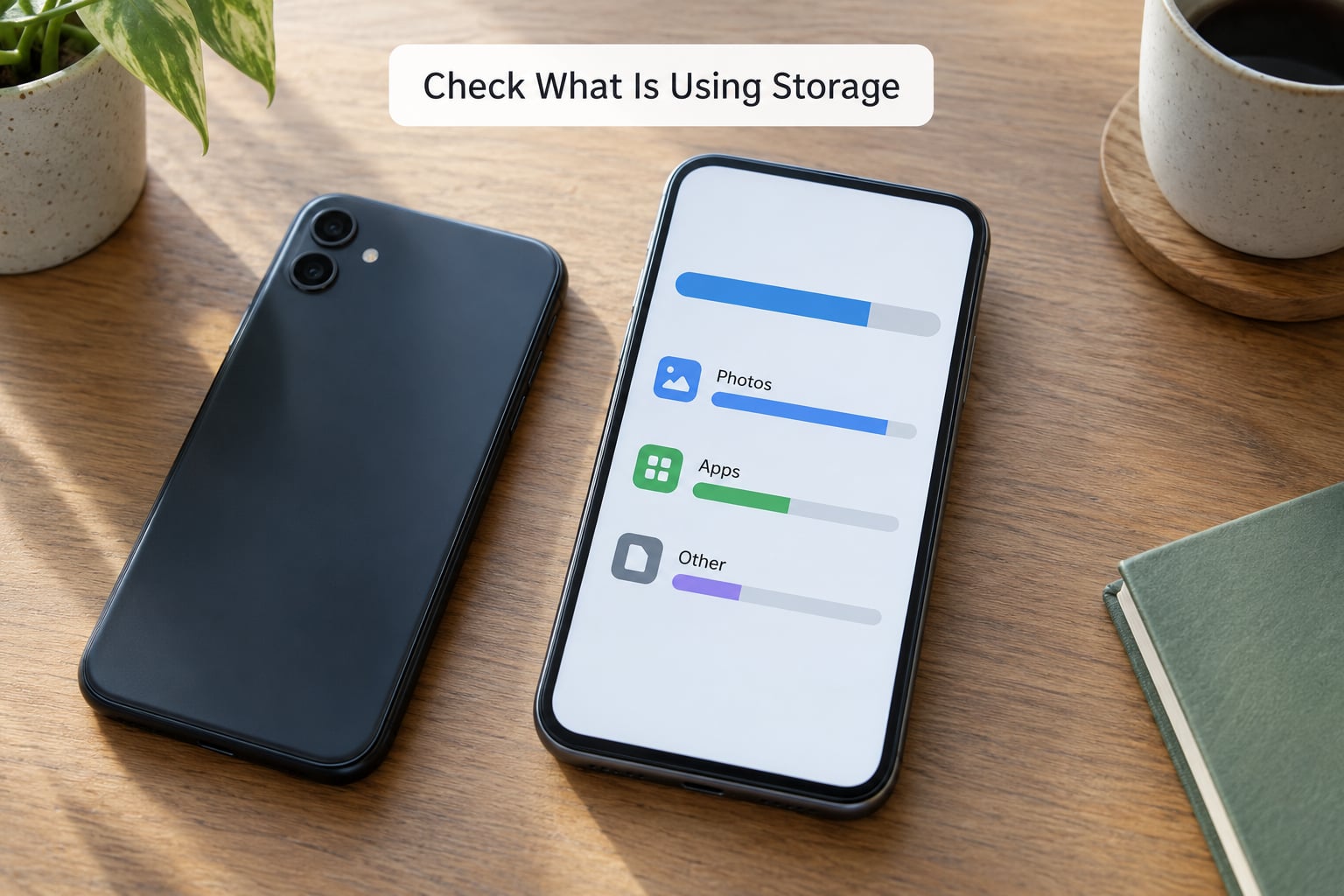
Open your storage screen and read the bar chart before you touch anything. On iPhone, Settings > General > iPhone Storage lists Apps, Photos, iCloud, Messages, Files and a bucket called System Data. On Android, Settings > Storage shows Internal shared storage, then breaks it into categories.
Tap through the categories and note the biggest two or three. You are looking for a quick win, not a complete inventory. To see it per app, tap the Apps row on iPhone and sort by size, or on Android tap the three-dot menu next to an app and pick Sort by size.
You will know this step worked when you can name the top three space eaters. If the biggest one is something you do not recognise, the messaging and offline downloads step further down probably explains it.
| What you want to do | iPhone path | Android path |
|---|---|---|
| See the storage breakdown | Settings > General > iPhone Storage | Settings > Storage |
| Sort apps by size | Settings > General > iPhone Storage > Apps (tap a row for options) | Settings > Apps, three-dot menu, Sort by size |
| Clear a single app’s cache | Not offered per app; close and reopen the app instead | Settings > Apps > the app > Storage > Clear cache |
| Free space in photos already backed up | Settings > Photos > Optimize iPhone Storage | Google Photos > your profile > Free up space |
| Reclaim an app’s space but keep its data | Settings > General > iPhone Storage > Apps > the app > Offload App | Not offered; use Clear storage or uninstall |
| Delete an app for good | Long-press the icon, Delete App, then Delete | Long-press the icon, Uninstall |
| Check system-level junk | Settings > General > iPhone Storage > System Data | Settings > Device Care > Storage > Clean now |
2. Delete or Move Large Unused Files
Downloads and Files folders are where large installers, PDFs, ZIP archives and old video files go to sit for years. On iPhone, open Files and tap Downloads at the bottom of the sidebar. On Android, use the Files app, tap the hamburger menu and open Internal storage, or open the Downloads folder in any file manager.
Sort by size or date, and work on the biggest. If you want the file, move it rather than deleting it: AirDrop or cable to a computer on iPhone, cable or cloud upload on Android. If you do not recognise the file, it is usually a leftover installer or a video from a group chat somebody sent you.
To check you succeeded, the folder size should be smaller the next time you look. A single 4K video can run to several hundred megabytes, and 1080p video commonly lands somewhere between 100 and 250MB a minute depending on your phone, so short clips add up faster than people expect.
3. Clean Up Photos and Videos
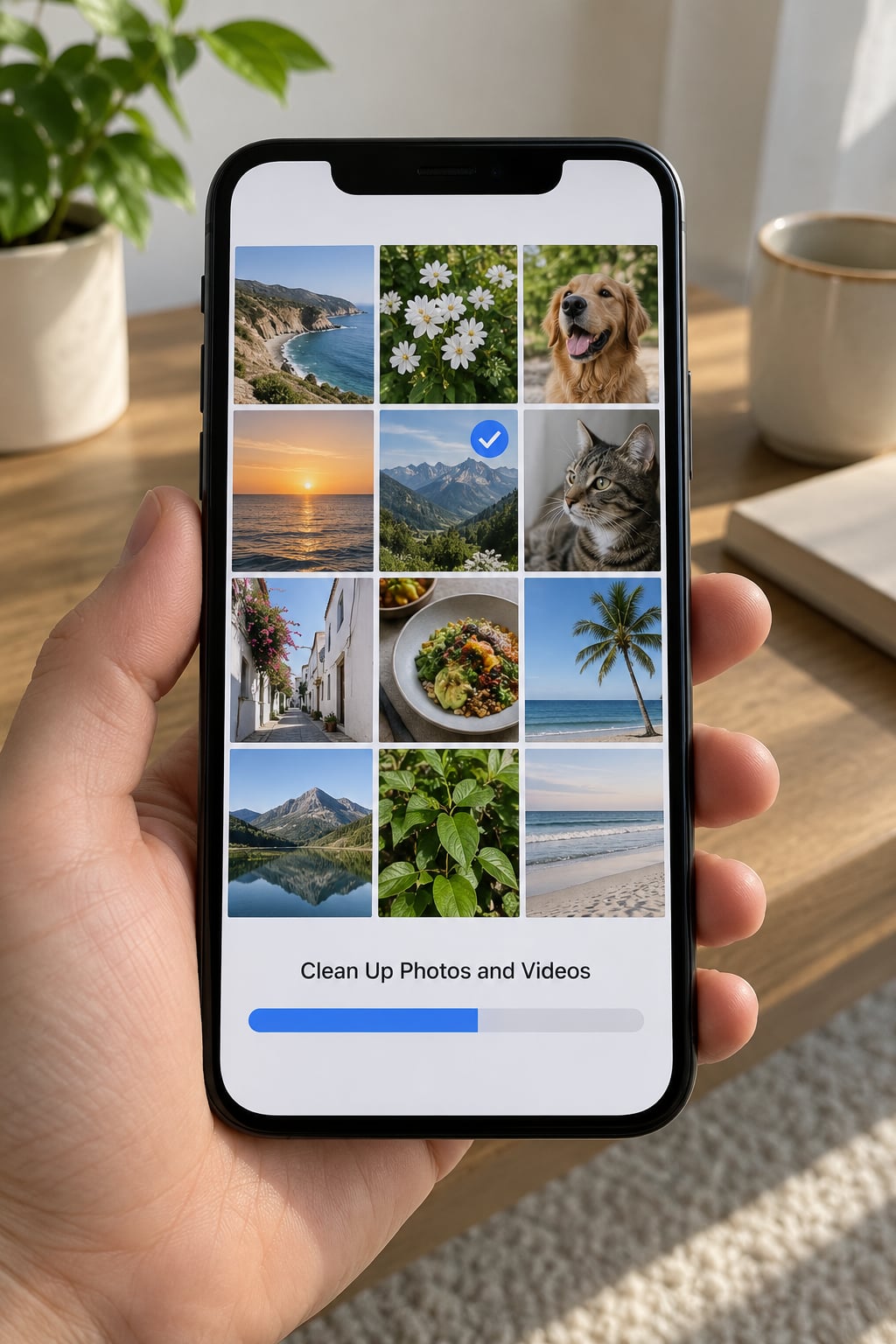
Photos and video are almost always the biggest category, and you do not need to review thousands of images one by one. If your library is already backed up, use the bulk option. On Google Photos, open the app, tap your profile picture top-right, tap Free up space, and confirm. On iPhone, turn on Settings > Photos > Optimize iPhone Storage.
What that does is delete the small on-phone copies of photos that already exist safely in iCloud or Google Photos. The albums, the dates and the memories stay identical. If a photo is not backed up, it will not be touched.
Then look at the folders that are genuinely yours to sort: screenshots, burst shots, and the video camera. Screenshots accumulate quietly, hundreds of near-identical screen grabs of receipts and menus that served their purpose. Deleting a whole screenshot album at once is usually safe and can be a surprising amount of space.
For duplicates, Google Photos has a built-in suggestion under Storage used by a photo. On iPhone, the Photos app stacks visually similar shots for you if you scroll to the bottom of a year. Check that the stack keeper is the sharpest one before you bin the group.
4. Clear App Data and Cache
A cache is temporary scratch data an app keeps so it opens faster. It is not your account, not your messages and not your settings, and clearing it is the safest free space on the whole phone. On Android, open Settings > Apps, pick an app, tap Storage, then Clear cache. On Samsung, look under Device Care > Storage instead.
iPhone does not offer a per-app cache clear. The closest equivalents are closing the app from the app switcher, or deleting and reinstalling the app, which is more disruptive, so only do that for an app that is genuinely misbehaving.
One warning from the people who post about this most: do not tap Clear storage or Clear data on apps that hold your real content. That button wipes the app’s local data, and on some apps that means offline downloads, saved drafts and a signed-out account. Cache only.
5. Review Unused Apps
Go back to the app list sorted by size and scroll the whole way down. The bottom of that list is where the abandoned apps live, and bloatware from the manufacturer is often a big chunk of it. On Samsung and some Android phones, you cannot uninstall some of these, but you can disable them instead.
On iPhone there is a decision worth pausing on: Offload App versus Delete App. Offload frees up the app’s data but keeps the app and your login, so it downloads its content again on next launch. Delete App removes everything, including sign-in. For banking and two-factor apps, delete rather than offload, because offloaded banking apps are a well-known source of trouble.
Before removing anything, check whether it holds data that lives only on the device. Password managers, authenticator apps, offline maps, voice memo recorders and note apps are the usual surprises. Export what you need first.
6. Check Messaging Apps and Offline Downloads
Chat apps are usually where the mysterious space goes. WhatsApp, Telegram and Signal all keep every photo, video and voice note you have ever received, marked as read or not, and it sits on the phone. In WhatsApp, open the app, tap Settings > Storage and manage each chat or use Manage Storage > Delete messages to clear the biggest ones. In Telegram, Settings > Storage and Data > Clear Cache.
The same pattern applies to streaming apps. Spotify, Netflix, YouTube and podcasts download media you have played once and then keep. Most have a download or offline setting where you can delete the lot, and a mobile data setting that stops new downloads when you are not on Wi-Fi.
You will know this worked when the storage bar moves without you touching the camera roll. If it moves by several gigabytes, that was the culprit all along.
7. Empty the Trash and Manage Temporary Files
Deleting a file rarely deletes it. iOS keeps deleted photos in Recently Deleted for 30 days, and you can watch them sit there eating space the whole time. Go to Photos, tap Albums, Recently Deleted, then Empty. Android has its own recently deleted folder in the Files app, and Samsung devices keep a Recycle Bin in Gallery.
Also run the built-in cleaner. On iPhone, Settings > General > iPhone Storage and look for anything flagged as recommended. On Android, Device Care > Storage > Clean now, or Storage > Temporary files on a Pixel. It reports what it found before deleting anything, so read the list rather than tapping straight through.
System updates also get stashed. After a major iOS update, the old version can sit on the phone for a couple of weeks, and clearing it releases a meaningful chunk of space on its own.
8. Prevent Storage from Filling Up Again
The reason most people feel stuck in a loop is that the phone quietly refills. These are the settings that stop it:
- Turn on automatic photo backup and let the free-up-space tools do the deleting for you, so the library never grows unchecked.
- Set chat apps to download media on Wi-Fi only. In WhatsApp this is Settings > Storage and data > Media auto-download. In Telegram it is Data and Storage > Use mobile data.
- Keep streaming downloads on Wi-Fi only and clear them monthly.
- Delete apps you stopped using. The 3-dot menu on Android shows a last-used date for many apps, which makes the decision easy.
- Run the storage report once a month rather than waiting for the full warning. On iPhone it also tells you when it was last backed up.
If you already pay for iCloud or Google One and you are near the limit, check your plan before deleting more photos. Sometimes upgrading by a single tier is less work than sorting a few thousand images, and the plan settings screen shows what you are actually using now.
Common Mistakes
Deleting without a backup. The Free up space button is safe, but manual deletions are not. Confirm the backup timestamp before you start, not after. The single most common regret reported on phone help forums is a family photo that existed nowhere else.
Clearing data instead of cache. Clear data is a different button with a very different meaning, and on messaging and banking apps it can wipe real content or sign you out.
Assuming deleting an app deletes its cloud content. It goes the other way. Deleting the app removes the local copy, and anything in the cloud stays in the cloud, which is exactly why re-downloading chat history can bring a huge amount of media back down at once.
Signing out of an app to free space. Signing out does not clear storage. Users have found this out the hard way. To actually shrink a bloated app, uninstall it and reinstall it.
Panicking about the System Data or Other bucket. It is real, and it is not just the operating system. It contains caches the system cannot attribute elsewhere, swap files, update files, logs and sometimes orphaned data from apps you removed badly. It usually shrinks on its own after a reboot, and it always shrinks after a backup and restore. The forum consensus, including on Android Central, is to leave it alone unless it is absurdly large and everything else has been cleaned.
Deleting system files you do not recognise. Files in odd-looking folders, anything with a long random name, and files you did not put there are not yours to delete. Sort by size instead and stay in the categories your phone clearly labels.
When everything else has been tried, the last-resort options rank like this, safest first. Offloading an app loses nothing. Uninstalling and reinstalling an app loses its local downloads only. Restoring from a backup clears a bloated system bucket but wipes the device, so it needs a complete backup first. A factory reset is the nuclear option: it genuinely fixes a phone that is full and broken, and you lose everything not on a backup or in a cloud account.
Frequently Asked Questions
What should I delete when my phone is full?
Start with video, then screenshots and chat media, then unused apps. Open your storage screen and sort by size before deleting anything, so you target the biggest items first. Most phones have hundreds of megabytes of screen grabs and gigabytes of old video in chat apps. Only delete photos you have confirmed are backed up.
Does deleting photos free up storage on my phone?
Yes, and video frees up considerably more than photos per file. If your library is already backed up to iCloud or Google Photos, use the built-in bulk tools: Optimize iPhone Storage in iPhone settings, or Free up space in the Google Photos app. Those delete only the small on-phone copies, so the albums look exactly the same.
Does deleting text messages free up storage space?
Plain text messages take almost no room, so deleting a thread of text frees next to nothing. Attachments are the whole story: photos, videos, voice notes and documents. In WhatsApp use Settings then Storage and manage the largest chats. In Telegram use Settings then Storage and Data then Clear Cache, which removes cached media without touching your chats.
Will clearing cache delete my passwords or log me out?
No. Clearing a cache removes temporary scratch files that an app regenerates on next launch. Your logins, messages and settings are not stored there. What does log you out is Clear data, which is a different button that wipes the app’s local data. Use Clear cache, never Clear storage or Clear data.
Why is my storage so full even after deleting photos?
Something is still holding files, and it is usually one of four things: deleted photos sitting in Recently Deleted for 30 days, chat media you have not cleared, streaming and podcast downloads, or a large System Data or Other bucket. The bucket contains unattributed caches, swap files and update leftovers. It usually shrinks after a reboot, and reliably after a backup and restore.
Can I recover photos after deleting them to free space?
Often, but not always. For 30 days you can recover them from Recently Deleted in the Photos app, or from the recently deleted folder in Files. Anything deleted after that goes into the system trash and needs a professional recovery tool, with no guarantee. Photos deleted through Google Photos Free up space stay in your Google Photos library, so they are always recoverable there.
Conclusion
Start by opening your storage settings and sorting by size. That one screen tells you which of these steps actually matters for your phone, and it takes about a minute. If you only have time for three things, clear the app caches, free up space in photos you have already backed up, and clear the media in your biggest chat.
Leave the System Data bucket alone unless everything else is done and it is still enormous, and back up before you delete anything. Do that once, then turn on the auto-backup and Wi-Fi-only download settings so you are not doing it again next month.