If you’re wondering why does my phone battery drain so fast, the answer is usually one of three things: apps and system features burning power in the background, a battery that has physically worn down, or a fault somewhere in the phone itself. Most sudden drops are software, and most gradual shortening of runtime is battery age. This guide covers both iPhone and Android, because the head term is platform-neutral and the menus differ.
The quickest way to tell which one you have is to open your phone’s own battery usage screen before changing anything. That report names the specific apps and features responsible, and on both platforms it takes under a minute to read.
Table of Contents
- 1Why Does My Phone Battery Drain So Fast?
- 2What Counts as a Fast-Draining Phone Battery?
- 3What Causes a Phone Battery to Drain So Fast?
- 4Background apps and sync
- 5Weak or unstable cellular signal
- 6Screen brightness, refresh rate and auto-lock
- 7Location services and push notifications
- 8Heat and temperature
- 9A worn lithium-ion battery
- 10Rogue apps, VPNs and third-party security software
- 11Accessories you forgot were paired
- 12Right after a software update
- 13While the phone sits idle
- 14How to Check Battery Usage and Battery Health
- 15Battery usage settings on iPhone
- 16Battery diagnostics on Android
- 17How to Fix a Phone Battery That Drains Too Fast
- 18Quick checks on an iPhone
- 19Quick checks on Android
- 20How to Find an App That Is Draining Your Battery
- 21When Fast Battery Drain Means the Battery Is Old or Faulty
- 22Frequently Asked Questions
- 23How can I tell what is draining my cell phone battery?
- 24Why does my phone battery drain fast right after an update?
- 25Should I close apps to save battery?
- 26Is it better to turn my phone off to stop overnight drain?
- 27How long will a 5000 mAh battery last?
- 28What to Do First
Why Does My Phone Battery Drain So Fast?
Fast drain is just a faster-than-usual drop in stored charge. A battery percentage is not a measure of energy left, it is a guess based on voltage and recent current draw, so anything that keeps the processor, screen, or radios working hard moves that guess down quickly.
Common causes
- Background activity — apps syncing mail, photos and messages while the screen is off (Settings > General > Background App Refresh on iOS)
- Weak cellular signal — a radio hunting for a usable tower draws heavily, especially with 5G enabled
- A bright screen with a short auto-lock — the display is normally the single biggest power user
- Location services — apps set to Always or While Using can hold the GPS chip open indefinitely
- Push notifications — every wake-up restarts JavaScript in an app
- An overheating phone — heat causes short bursts of CPU throttling and faster chemical wear
- An aging battery — a worn lithium-ion cell holds less charge at the same percentage
- A new operating system build — phones re-index files for 24 to 48 hours after a major update
Quick fixes
- Restart the phone, then re-check battery usage after an hour
- Turn on Low Power Mode on iPhone or Battery Saver on Android
- Restrict background app refresh or set apps to restricted battery use
- Switch to Wi-Fi, or use Airplane Mode in places with poor reception
- Update the system and every app, then let the phone settle for two days
- Check maximum capacity in battery health to rule out an aged cell
What Counts as a Fast-Draining Phone Battery?
There is no single number, because battery size, screen size, chipset efficiency and battery health all move the result. What you can do is compare your current behaviour against a realistic range for the same kind of use, and check the idle figure, which is the least variable number of all.
| Activity | Typical drain per hour | What it tells you |
|---|---|---|
| Screen off, sitting idle on the table | Under 2% | Normal. Anything above 3% is worth chasing |
| Screen off, overnight (about 8 hours) | Under 10% | Losing 20% or more unused is a real problem |
| Reading, messaging, light browsing | 8 to 12% | The everyday baseline most people mean by “normal” |
| Video streaming or video calls | 10 to 15% | Screen plus radio plus decoding together |
| Voice calls on cellular | 6 to 10% | Moderate, higher with poor signal |
| Navigation with the screen on | 15 to 25% | GPS, screen and data at once |
| 3D games or video recording | 20 to 30% | Genuine heavy load; this is not a fault |
| Idle in a basement, lift or rural area | 10 to 20% | Signal hunting, not a battery problem |
Two benchmarks are worth memorising. Idle drain above roughly 4 to 5% per hour with the screen off points to background software, not to the battery. Idle drain under 2% per hour but short screen-on time usually points the other way, toward a cell that no longer holds much.
If you want a fair test, note the percentage and the time, put the phone face down and untouched, and check again after two hours. That gives you a percentage-per-hour figure you can compare before and after each change, which is far more useful than guessing.
What Causes a Phone Battery to Drain So Fast?
The causes split cleanly by when the drain started. A phone that has always been slow to charge is a different problem from one that was fine last week, so it helps to sort your case before you start changing settings.
Background apps and sync
Mail, chat, social and photo apps sync on a timer, and a badly written one syncs constantly. In practice, restricting background sync across nearly every installed app often restores normal runtime within a day. On Android the equivalent control is per-app battery use: set the offending apps to Restricted so they only run when you open them.
The habit of swiping apps away to save power usually does the opposite on iOS. Force-quitting an app unloads it, and the system has to rebuild its state the next time you switch to it, which costs more energy than letting it sit suspended.
Weak or unstable cellular signal
A phone holding one bar is boosting its transmit power continuously to keep the call alive. This is why the same phone that lasts all day in the office dies in an afternoon in a basement or a rural area. If the drain pattern matches wherever you carry the phone, switching off 5G for the day or using Wi-Fi is a faster fix than anything in a settings menu.
Screen brightness, refresh rate and auto-lock
An always-bright display outdoors is a large, constant load. Auto-brightness normally handles this, so if you have overridden it manually to maximum, that alone can explain a several-hour difference in screen-on time. A longer auto-lock timeout means more time with the panel lit, too.
Location services and push notifications
An app with Always-on location permission keeps the GPS chip warm even when the phone is in a pocket. Push notifications from chat apps, email and social feeds are a smaller but constant trickle, since each one wakes the processor briefly several times an hour.
Heat and temperature
A phone charging fast, sitting under a pillow, or working hard in a hot car runs hot, and a hot lithium-ion cell ages faster. A freshly paired Bluetooth accessory does draw power too, though rarely enough to be the main culprit, so check the accessory list in the battery settings before blaming the accessory.
A worn lithium-ion battery
Every charge cycle moves a cell slightly closer to the end of its life. Once maximum capacity drops into the low eighties, the same percentage shows less usable charge, which is why the phone that lasted until midnight at 80% now dies at 60%. Nothing in a settings menu reverses this.
Rogue apps, VPNs and third-party security software
Some apps do far more work than they should, and a security suite or VPN client is a common offender because it keeps a tunnel or a scan running continuously. It is not unusual for a single third-party app to account for most of the reported background drain. Owners who suspect hardware failure often find an unexpected background process instead, so check the usage report before assuming the battery has gone.
Accessories you forgot were paired
Car Bluetooth and Android Auto pairings are a well-known cause of overnight drain on Android devices, where the head unit stays in range in the driveway and keeps reconnecting. Smartwatches, styluses and wireless earbuds do the same. The fastest way to find the culprit is to remove paired devices one at a time and watch the overnight figure after each removal.
Right after a software update
This deserves its own heading because it catches people out. After a major iOS or Android build, the phone re-indexes the filesystem and re-optimises apps for the new API, and that work happens while you are using the phone. Expect a drain spike for 24 to 48 hours before judging it.
Point releases can also move the reported battery health number itself, sometimes by several percentage points with no change to the actual cell. A home screen widget or a find-my service that wakes constantly has also been enough to cause a sudden change on its own, and installing the next point release often clears it. If the update made things worse and a newer point release is available, install it before you start unwinding settings one by one.
While the phone sits idle
Drain with the screen off is the number to watch. A healthy phone lying unused overnight loses less than 10%. Something else is running when it should be asleep: a failed app stuck in a loop, an always-on location permission, a car Bluetooth connection, or a sync that never completes.
The failure pattern where a phone drops from 40% to 1% in minutes and then freezes at 1% is different again. That usually points to a worn cell whose voltage sags under load, and no settings change will fix it.
How to Check Battery Usage and Battery Health
Every phone ships with a power report and a health figure, and reading them takes about a minute. Labels shift between models and software versions, including after major annual releases, so look for the closest match if a name differs slightly.
Battery usage settings on iPhone
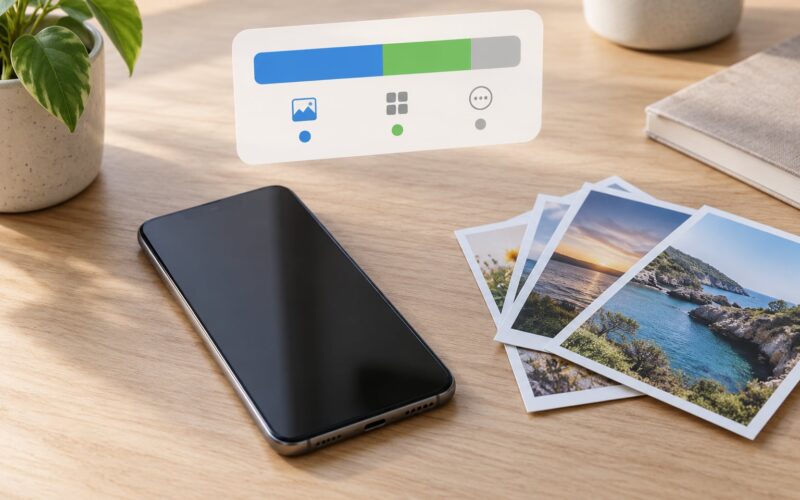
Open Settings > Battery. The graph at the top shows the last 24 hours, split between Wi-Fi, cellular and background drain, with screen-on and screen-off periods shaded underneath. Scroll to App Battery Usage for the per-app breakdown over the last 24 hours, or switch the period to the last 10 days if the drain was sudden.
For the battery itself, go to Settings > Battery > Battery Health & Charging. Maximum Capacity shows how much charge the cell holds now compared with when it left the factory, and Apple treats anything below 80% as a service point. Below 80%, expect shorter runtime even with the same habits. The same screen usually carries an Optimized Battery Charging toggle, which slows the last part of the charge cycle to reduce time spent at a high charge level.
Settings > General > Background App Refresh lets you switch individual apps off, which is the fastest way to quiet the top drainer if it turns out to be an app.
Battery diagnostics on Android
On stock and most manufacturer builds, open Settings > Battery > Battery usage. You get a list ordered by drain with time since last full charge, and tapping an app gives a breakdown of CPU, network, background and wakelock use. Wakelock time is the useful one: a high figure means the app is holding the processor awake.
Samsung’s One UI puts this under Settings > Battery > Battery, where the usage graph, Battery Saver and the per-app Restricted list sit together. Adaptive Battery lives in the same area on many builds and decides for you which apps to restrict.
Many manufacturers also ship a battery diagnostics tool in Settings > Battery or in a separate Care or Device Health section, and it reports the same underlying health figure as a percentage. Set the system language aside and treat any of these as equivalent. If you cannot find battery usage on an older device, search Settings for “battery” — the panel is always there somewhere, even if the label changed.
How to Fix a Phone Battery That Drains Too Fast
Work through these in order. The first four take about ten minutes and cover most cases; the rest are the longer-term measures. Before you start, charge to a known level, note the time, and use the two-hour idle test from earlier so you can tell what actually helped.
1. Restart the phone. This clears stuck processes and is the single highest-yield action. If a full shutdown does not fix it, restart the phone instead: hold the side button plus a volume button until the power slider appears, slide it, then hold the side button to turn it back on.
2. Read the battery usage report and identify the top drainer. Ignore anything under 5% and work down from the top. A single app or system service usually accounts for most of the problem.
3. Turn on a power saving mode. Low Power Mode on iPhone cuts background activity, fetches less and lowers screen brightness. Battery Saver on Android does the equivalent and can be set to trigger automatically at 20%.
4. Restrict the top drainer. Switch off Background App Refresh for that app on iOS, or set it to Restricted under Android per-app battery settings. For mail, switching from push to manual fetch every 30 minutes is a bigger win than anything else in that list.
5. Fix location permissions. Set anything that does not need live coordinates to Never, or While Using the App. On iOS: Settings > Privacy & Security > Location Services. On Android: Settings > Apps > Permissions > Location.
6. Trim the screen. Put brightness back on auto, set a shorter auto-lock timeout, and check that auto-brightness has not been locked at maximum. On iPhone, Settings > Display & Brightness > Auto-Lock; on Android, Settings > Display > Screen timeout.
7. Take the weak signal away. Switch on Airplane Mode for the duration of a bad-signal block, or turn off 5G on the network settings if you are in an area where the phone constantly hunts between 5G and 4G. Use Wi-Fi where you can.
8. Update everything. Settings > General > Software Update on iPhone, Settings > System > System update on Android, plus your app store updates. Then leave the phone alone for a day and a half before deciding whether the update helped.
9. Switch off radios and services you do not need. Bluetooth, NFC and personal hotspot, and above all check whether a VPN or third-party security app is running. Both belong near the top of the suspect list.
10. Unpair accessories. Clear the Bluetooth device list, especially car head units, smartwatches and styluses. A pairing you stopped thinking about a year ago is a genuine overnight drain source.
11. Remove or update a faulty app. Update first, since developers fix battery bugs often. If the app is optional, delete it and rerun the two-hour idle test.
12. Reset the settings, then the phone. Settings > General > Transfer or Reset > Reset > Reset All Settings on iPhone wipes preferences without touching your data. Erasing all content and settings is the true last resort, and you should back up first.
Myths that waste your time: swiping apps closed to save power, installing phone cleaner or antivirus apps that then run constantly, topping the battery to 100% every night, and periodic calibration from 100% to 1%. None of them help. Modern phones manage charge cycles on their own, and an app designed to watch your battery is another app consuming it.
Quick checks on an iPhone
On iOS the fastest combination is Low Power Mode (Settings > Battery), Background App Refresh limited to two or three apps (Settings > General > Background App Refresh), location set to Never for anything non-essential (Settings > Privacy & Security > Location Services), and Fetch New Mail pushed to every 30 minutes (Settings > Mail > Accounts > Fetch New Mail).
Two more worth a tap: Raise to Wake off if you do not need the phone lighting up when you pick it up, and Optimized Battery Charging on if it is off (Settings > Battery > Battery Health & Charging). Label names have moved between iOS versions, so if Low Power Mode appears under Battery as a toggle rather than a separate menu item, that is the same control.
Quick checks on Android
On Android, start with Battery Saver and Adaptive Battery (Settings > Battery), then set background-heavy apps to Restricted in the per-app list. Put Location permission on “Allow only while using the app” for anything that does not need continuous tracking, and check the data saver setting if you are on a limited plan.
Manufacturer skins rename things constantly. Battery usage might be Battery consumption, the per-app list might be under Apps or Battery, and diagnostics might sit under Device care instead. If a label is missing, use Settings search for the closest word and check your model’s support page for the exact path.
How to Find an App That Is Draining Your Battery
Start with the usage graph rather than the list. On iPhone, the graph separates Wi-Fi, cellular and background draw, so a large background band with the screen off points at software. On Android, the per-app breakdown shows wakelock time, which tells you whether an app is genuinely keeping the processor awake.
Then do the arithmetic, because this is where most people get stuck. The per-app percentages only cover the period the report covers, and they count foreground use separately from background use, so they will not add up to the total drop you watched on the home screen. The remainder is normally system services: radios, location, notification delivery and the display itself. A phone showing 20% for one app and 80% unaccounted for usually has a system-level cause, not an app problem.
Once you have a suspect, update it and measure again. Restart the phone, use it normally for a day, and rerun the same two-hour idle test. If the number has not moved, the app was a symptom rather than the cause, and you have lost nothing but an afternoon.
Signs the app deserves a complaint rather than a deletion: it shows large background use while you never open it, it holds wakelock time far above its peers, and it reappears at the top after you force-quit it. Report it through the app store and the developer, and check whether a newer version fixed it. Sudden drains often trace to a Google or system service rather than to a third-party app, so before you delete something you rely on, check whether the drain follows a system update instead.
When Fast Battery Drain Means the Battery Is Old or Faulty
Normal ageing looks gradual. The phone charges fully, the percentage behaves sensibly, and runtime shortens over months. Sudden failure looks different: the phone gets hot while barely used, dies at 40%, holds at 1% for minutes, or shuts down with charge remaining.
Battery health reporting has real limits on every platform. The percentage is an estimate derived from charge cycles, voltage and temperature history, so two phones in the same condition can report 87% and 91%. Point releases have been seen moving that figure by several points with no change to the cell. Treat it as one signal alongside runtime, not as a verdict.
There is one situation that changes everything. A brand-new phone draining faster than an older device feels wrong until you remember what is included: a new battery recovering from factory calibration, an operating system still settling in, and old apps restored without updating. Give it a week of normal use after setup. If the drain is still there, the phone is under warranty and the manufacturer will replace the battery.
Stop troubleshooting and contact the phone’s manufacturer or an authorised service provider when the battery health percentage is below 80%, when the phone shuts down unexpectedly, or when it becomes too hot to hold during ordinary use. Do not open the phone yourself, and do not continue using a battery that is visibly swollen, because the screen and back glass can crack. On iPhone, Apple’s support site handles battery service directly. On Android, Samsung, Google and the rest all run device diagnostics through their own support apps.
Frequently Asked Questions
How can I tell what is draining my cell phone battery?
Open your phone’s built-in battery report. On iPhone, go to Settings u0026gt; Battery and scroll to App Battery Usage. On Android, go to Settings u0026gt; Battery u0026gt; Battery usage and tap any app to see CPU, network, background and wakelock time. Start the phone at a known percentage, leave it face down and untouched for two hours, then compare. Anything above 4-5% per hour while idle points to software rather than the battery.
Why does my phone battery drain fast right after an update?
A major iOS or Android build makes the phone re-index files and re-optimise apps for the new system, and that work runs while you use it. Drain often stays high for 24 to 48 hours before settling. Check the usage screen now and again two days later, install any newer point release, and only start changing settings if the spike is still there after that window.
Should I close apps to save battery?
No. On iPhone a swiped-away app has to rebuild its state the next time you open it, which costs more energy than leaving it suspended. On Android the system already restricts background work for you. Only force-quit an app that is genuinely misbehaving, such as one frozen on screen with audio still playing. Spend your effort on per-app background permissions instead.
Is it better to turn my phone off to stop overnight drain?
Airplane mode plus Low Power Mode or Battery Saver solves most overnight drain without losing alarms or messages. A full power-off is only worth it when a process is genuinely stuck, the phone is misbehaving, or a repair visit is coming and a clean shutdown helps diagnostics. If overnight drain is over 20%, find the cause in the usage report rather than reaching for the power button.
How long will a 5000 mAh battery last?
Milliamp-hours alone do not decide runtime. Screen size and refresh rate, chipset efficiency, the 5G radio, how much you use the camera and navigation, and the battery’s current health all matter more than the headline number. A large 5G phone with a worn battery can beat a small one that is nearly new. Judge capacity against the phone’s own screen-on time, not against other phones’ spec sheets.
What to Do First
Restart the phone and give it a clean baseline. Then read the battery usage report and write down the top drainer before touching anything else.
Limit that one app or feature: restricted background use, tightened location permission, or Airplane Mode if the drain follows your location. Update the system and every app, wait out the 24 to 48 hour settling window, then rerun the two-hour idle test and compare the numbers.
If idle drain stays under 2% per hour while screen-on time still feels short, stop changing settings and check battery health. Below 80% maximum capacity, or with shutdowns and heat that were not there before, contact the manufacturer or an authorised service provider.