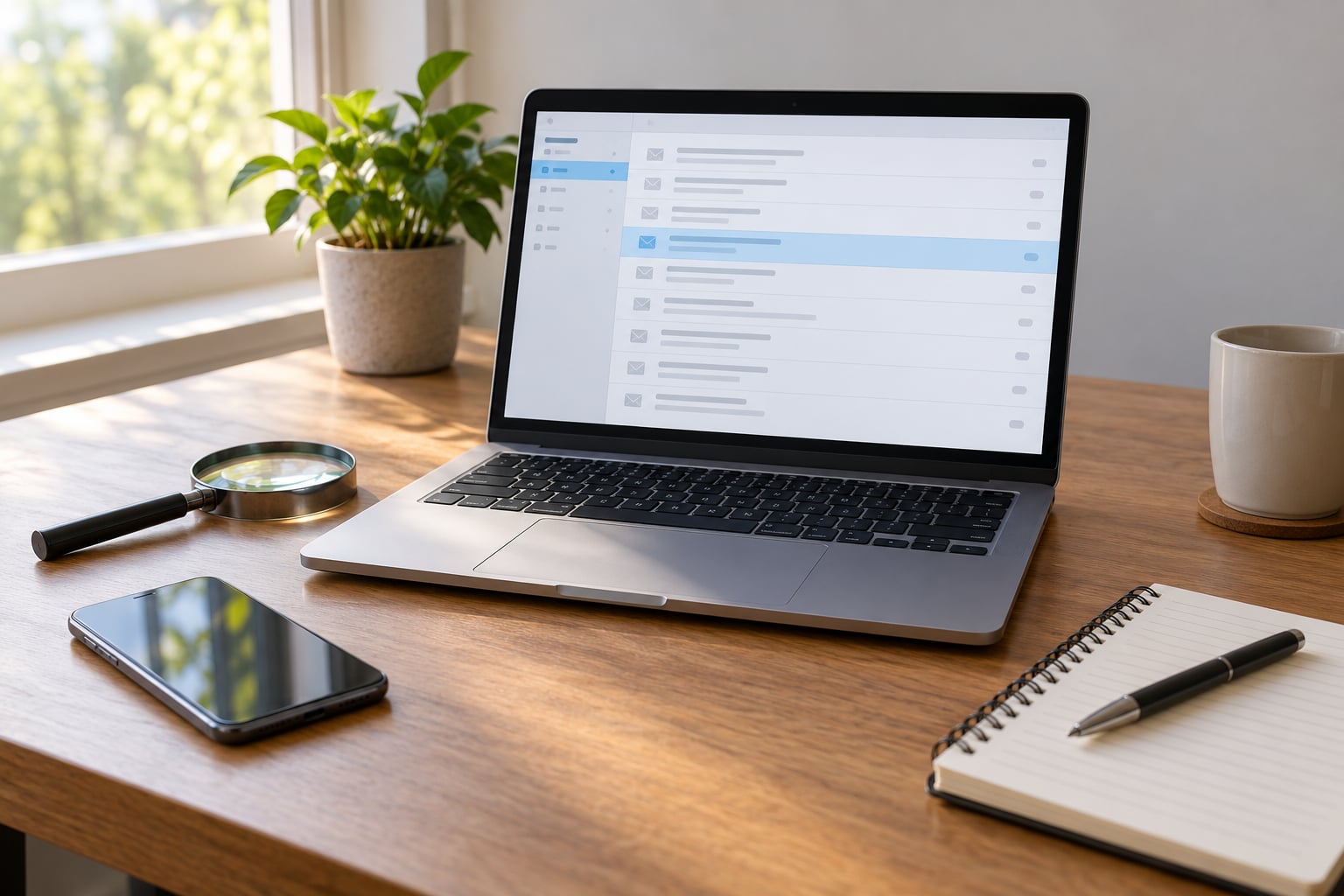
To recognize a phishing email, check three things before anything else: the real sender address behind the display name, the true destination of every link, and whether you were expecting the request at all. If any one of those feels wrong, stop there and verify through a channel the message did not provide. Most of this takes under a minute, and it needs nothing more than the email app you already use plus a phone number you already trust.
Phishing is a scam where someone impersonates a company or a person you know to trick you into clicking a link, opening a file, or typing a password into a fake page. The messages are ordinary enough that they blend into a busy inbox, which is exactly the problem.
The order below is deliberate. Most people get caught at step three or later, when the message has already asked them for something.
Table of Contents
- 1What You Need
- 2Step-by-Step
- 3Check the Sender and Display Name
- 4How to Recognize a Phishing Email by Reading the Message
- 5Inspect Links Without Clicking Them
- 6Examine the Destination Page
- 7Treat Unexpected Attachments as a Risk
- 8Check for Pressure, Secrecy, and Unusual Payment Requests
- 9Look for Inconsistencies in Branding and Context
- 10Verify the Request Through a Trusted Channel
- 11Delete, Report, or Quarantine Suspicious Email
- 12Common Mistakes
- 13Trusting the Display Name
- 14Hovering Only on Desktop
- 15Replying to Ask Whether an Email Is Real
- 16Treating HTTPS as Proof
- 17Opening the Attachment to See What It Is
- 18Frequently Asked Questions
- 19Can you tell if an email is phishing just by looking at it?
- 20What should I do if I clicked a phishing link?
- 21Is an email with HTTPS or a padlock icon safe to trust?
- 22Can phishing emails use my contact’s real email address?
- 23Should I forward a suspected phishing email to my friends or IT team?
- 24Conclusion: What to Do First
What You Need
Three things, and nothing you have to buy.
- Your email app — the view you normally read mail in, on desktop or phone.
- A web browser — useful for checking a suspicious domain by typing it yourself rather than following the link.
- A trusted way to verify — a phone number you already had on file, a saved contact, or the official website you can reach independently.
One rule covers the whole procedure: while you are deciding, do not open attachments, do not click links, and do not reply. Investigating a phishing email never requires engaging with it.
Step-by-Step
Work through these in order and stop at the first one that fails. You do not need all nine to make a decision.
Check the Sender and Display Name
The display name is the part that fools people. It can be set to anything, so “Amazon Support” can sit above an address that has nothing to do with Amazon.
Open the address and read it left to right. The domain after the @ sign is the part that matters — paypa1-secure.com is not paypal.com, and [email protected] is not Microsoft.
Compare that domain with the organization’s real website. Typing the real site address into your browser and checking its contact page takes ten seconds and settles the question.
How to Recognize a Phishing Email by Reading the Message
Read it as a stranger would. Ask whether anything about it matches a real conversation you have had with this sender.
- Vague greetings like “Dear Customer” or “Dear User” when a real service would use your name.
- A subject line that does not describe the contents, such as “FYI” or “Important update”.
- Details that conflict with what you know — wrong company name, wrong job title, a sender who would not know your account number.
- Requests that arrived with no prior thread between you.
Bad spelling used to be a giveaway. It largely is not anymore: text written by a language model reads cleanly, and attackers now run drafts through the same tools. Treat grammar as one weak signal among several, never as proof on its own.
Inspect Links Without Clicking Them
On desktop, hover the mouse over a link and read the preview that appears. The visible text can say anything; only the real destination counts.
Read the domain carefully, character by character. Watch for swapped letters, extra words (amazon.com.security-check.co), a different top-level domain than you expect, and links shortened through a redirect service that hides the final address.
On a phone, tapping is a tap. Long-press or press and hold a link to preview it instead, and never open a QR code from an email unless you can verify the sender by another route first — the code takes you to a page your phone cannot warn you about.
Examine the Destination Page
If you do open a link, open it deliberately in a browser you trust, not inside the mail app, and look before you type.
A legitimate login page belongs to the service’s real domain and asks only for credentials. If you followed a link from an email and land anywhere else, close the tab. Also check that the page asks for what the message promised — a parcel delivery notice that leads to a password form has told you what it is.
The odd detail is often the giveaway. A real sign-in page usually asks for a password and maybe a code, then drops you into a familiar inbox or account page. A page that congratulates you for finding your account, celebrates a prize you never entered for, or demands a small “verification” fee is running a script, not a login form.
Check the address bar once more after the page loads. Fraudulent pages sometimes redirect mid-visit, so a domain that looked right on the first screen can change underneath you.
Treat Unexpected Attachments as a Risk
You did not ask for the file, so you do not open it. That rule covers most cases, including attachments from people you know, since a real account can be stolen and used to send mail to its own contacts.
Be extra cautious with executable files, shortcuts, script files, documents that ask you to enable content, and archives with a password you were never given in advance. Password-protected archives are a common way to get a file past scanning tools.
If the attachment is genuinely expected, verify through a separate channel and then ask for a fresh copy through your normal route.
Check for Pressure, Secrecy, and Unusual Payment Requests
Phishing is built on emotion, and the pressure almost always arrives in the same shapes: your account will be closed, a payment is overdue, a prize expires tonight, or a director needs gift cards for a client.
Requests for money, passwords, one-time codes, or bank details should end your assessment immediately. No legitimate service asks you to read a code out loud or email it to anyone.
Payroll and bank-detail changes deserve special attention. If a “known” colleague or supplier sends new payment details, confirm them by phone using a number you already had.
Secrecy is the other half of the trick. Messages that ask you to keep the conversation quiet, to not tell your manager, or to handle something “before anyone else sees it” are trying to remove the second opinion that would expose them.
Look for Inconsistencies in Branding and Context
Impersonation leaves traces. Logos can be stretched or low-resolution, colours can be slightly off, buttons can link somewhere else than they look, and footers can reference a helpdesk that has moved.
Context counts too. A message about your car insurance from a sender you have never heard of, or a tax notice dated in a month that has not happened, breaks the story it is telling.
Branding is one of the weakest signals on its own. Attackers copy a real header in seconds, so match the message against your memory of prior contact rather than against its appearance.
Verify the Request Through a Trusted Channel
This is the step that actually stops the attack, and it is the one people skip. Use a channel the email did not give you.
- Call a number you already had in your contacts, or type the organisation’s website yourself.
- Open the app or service directly and check whether the same request is waiting for you there.
- Check your bank or card statement for a real pending transaction before assuming one exists.
- Ask a colleague through chat or a call, not by replying to the message.
If the message cannot be confirmed through any of those, treat it as phishing.
Delete, Report, or Quarantine Suspicious Email
Do not reply, and do not forward it to friends. Forwarding spreads the same lure and makes your friends the targets.
Use the report control your mail app provides — Gmail has “Report phishing” in the three-dot menu, Outlook has “Report” on the ribbon, Apple Mail has a Report button in the toolbar on iPhone and iPad. Reporting helps your provider block the sender for everyone, which a delete does not.
Delete it afterwards. Keep a screenshot only if your workplace or bank needs evidence, and redact anything personal before sharing.
There is no penalty for reporting something that turns out to be legitimate. Speed matters more than certainty, and a ten-second false alarm costs far less than a compromised account.
Common Mistakes
Most people who get caught made one of these mistakes first.
Trusting the Display Name
The name in the sender field is chosen by the attacker. The domain is not. Read the full address every time, even for senders you know by sight.
Hovering Only on Desktop
Most people read mail on a phone, where there is no hover. Press and hold to preview the link, or skip the link and go straight to the site through your own bookmarks.
Replying to Ask Whether an Email Is Real
Replying confirms the address is live and hands the attacker a conversation. Verify elsewhere, then delete.
Treating HTTPS as Proof
A padlock only means the connection to that site is encrypted. Phishing pages get free certificates, so any scam URL can show one. Check the domain, not the padlock.
Opening the Attachment to See What It Is
Opening is the point. Decide from the file name and the context whether you would have expected the file, and when in doubt, ask through a channel the message did not provide.
A few habits close most of the gaps: turn on multi-factor authentication everywhere that offers it, use a password manager so only the sites you trust can autofill, avoid reusing one password across accounts, and keep your phone’s system and apps updated. If your employer offers simulated phishing tests, take part in them — they are far cheaper than the real thing.
Frequently Asked Questions
Can you tell if an email is phishing just by looking at it?
Often, yes, but not from looks alone. The reliable clues are behavioural rather than visual: a request you did not expect, a sender domain that does not match the organisation, pressure to act now, and a link or attachment that asks for credentials, a code, or payment. Clean branding and a valid padlock can both appear on fraudulent messages, so appearance alone settles nothing.
What should I do if I clicked a phishing link?
Do not panic, and do not stay silent. Close the page, report the email, then change the password for that account from the service’s real site, not from the email. Sign out of all sessions, review your MFA settings for changes you did not make, and run a scan on your device. Speed beats embarrassment here, and most people who only clicked, without typing anything, come out fine.
Is an email with HTTPS or a padlock icon safe to trust?
No. HTTPS only encrypts the connection to whatever site you reached, including a fraudulent one, and anyone can obtain a certificate for a domain they control minutes before sending a message. Check the domain name carefully instead, and remember that a familiar-looking address can be a near-copy with one letter swapped.
Can phishing emails use my contact’s real email address?
Yes, and it happens often. Attackers either spoof the address using only the display name or log into a real account and send from it. That is why checking the address alone is not enough. If a message from someone you know asks for money, credentials, or an attachment, confirm with them through a call or a chat message you started yourself.
Should I forward a suspected phishing email to my friends or IT team?
Report it rather than forwarding it. Reporting alerts your mail provider or IT team so the sender can be blocked for everyone. Forwarding spreads the same lure to people who did not ask for it. If you want a second opinion, send a screenshot with the links and addresses blurred, and never forward the original with live links intact.
Conclusion: What to Do First
Stop interacting with the message. That means no clicking, no opening, no replying.
Then confirm the sender through a channel the email did not provide — a saved phone number, the organisation’s real website, or the service itself.
Report it with your mail app’s reporting control, then delete it. If you already entered a password, approved a prompt, or paid something, change that password immediately, sign out of your sessions, and contact your bank or IT team. Acting in the first ten minutes is worth more than being certain.